
If you’ve been using Microsoft 365 Copilot for a while, you’ll know it’s great at answering questions, summarising emails and helping you draft content. Copilot Cowork takes this a step further. Rather than going backwards and forwards with Copilot one prompt at a time, you hand Cowork a piece of work and it gets on with it for you.
In this blog post, I’ll explain what Copilot Cowork is, how it differs from Copilot Chat, what you need before you start and how much it costs. I’ll then share a set of 25 tasks with example prompts that you can try yourself. You don’t need any technical experience to follow along.
Important: Copilot Cowork requires a Microsoft 365 Copilot licence and must be enabled by your organisation. Features are rolled out gradually, so some of what I cover may not yet be available in your environment.
Let’s get started.
Why Copilot Cowork?
Before we dive in, it’s worth asking why Microsoft has introduced Cowork in the first place. Microsoft’s Work Trend Index research found that people using Microsoft 365 are interrupted roughly every two minutes during core working hours by a meeting, an email or a chat. For the busiest users, that adds up to around 275 interruptions a day. Microsoft calls this the infinite workday.
A lot of that time is spent organising information rather than doing meaningful work. Checking your inbox, piecing together what happened in a Teams thread, finding the right file before a meeting. This is exactly the kind of work Cowork is designed to take off your plate.
What is Copilot Cowork?
Copilot Cowork is an agentic Copilot experience. That simply means that Cowork can plan and carry out tasks on your behalf, rather than just answering a question and stopping. Think of it like handing a task to a helpful colleague. You explain what you need, they work out the steps, and they come back to you with the finished result. Along the way, they check with you before doing anything important, such as sending an email.
Note: Reading, searching and drafting happen without interruptions. Anything that leaves your hands or changes something, such as sending an email, posting in Teams, scheduling a meeting, sharing a file or deleting an email, always waits for your approval first.
Microsoft says Cowork can:
- Draft, reply to and send emails in Outlook
- Schedule meetings and manage your calendar
- Create Word documents, Excel spreadsheets, PowerPoint presentations and PDFs
- Post messages in Teams chats and channels
- Search across your organisation for documents, messages and information
- Carry out deep research and pull the findings together into a report
- Prepare daily briefings and meeting summaries
Cowork is grounded by Work IQ, which is Microsoft’s intelligence layer for work. In simple terms, Work IQ gives Copilot an understanding of your emails, meetings, chats, files, the colleagues you collaborate with and the projects you work on, so the results are based on your actual work rather than generic answers.
Note: Cowork inherits your permissions. It can only access the files and emails you already have access to, so if you can’t open a file, neither can Cowork. Your organisation’s sensitivity labels and policies still apply, and Cowork doesn’t use your organisation’s data to train AI models.
What is the difference between Chat and Cowork?
This is one of the most common questions I get asked, so here’s a quick comparison.
| Copilot Chat | Copilot Cowork | |
| Best for | Quick questions, summaries and drafts | Bigger pieces of work you want to hand over |
| How it works | You ask, Copilot answers, you ask again | You describe the outcome and Cowork works through the steps |
| How long it takes | Seconds to minutes | Minutes to hours, running on its own |
| Example | Summarise this document for me | Prepare me for tomorrow’s meeting and email the agenda to the attendees |
Here is how I think about it. Chat is a conversation where you are driving each step. Cowork is delegation. You tell it what you want done, then let it work out how to get there while you get on with something else.
What you’ll need to get started
- A Microsoft 365 Copilot licence assigned to your account, also known as Copilot Premium. This is a prerequisite needed before you can use Cowork.
- Cowork enabled in your organisation, along with usage based billing. This is set up by your IT administrator. Cowork is disabled for users by default.
Note: If you can’t access Cowork, speak to your IT team. Cowork won’t start costing your organisation unless it has been enabled for you.
How much does Cowork cost?
Your Microsoft 365 Copilot licence covers everyday Copilot experiences, such as Copilot Chat and Copilot in Word, Excel, PowerPoint, Outlook and Teams. Cowork is different. It uses usage based billing, which means your organisation pays for what you actually use, measured in Copilot Credits.
Your organisation sets a monthly credit limit for you. Bigger and more complex tasks use more credits than quick ones, and unused credits don’t carry over to the following month. If you reach your limit, you can request more from your organisation.
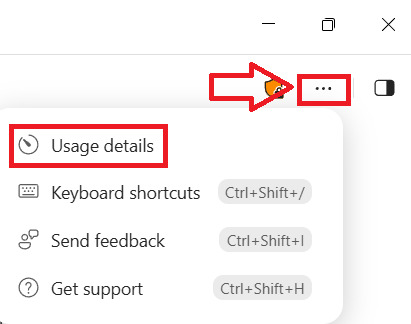
Tip: Type /cost in any Cowork task to see roughly how many credits that task has used, how many you’ve used this month and how many you have left. Using /cost doesn’t cost any credits. You can also click on an option recently introduced by Microsoft called Usage details as shown in the image below.
How to open Copilot Cowork
- Go to copilot.cloud.microsoft and sign in with your work account. You can also launch the Copilot application if installed on your device.
- Select Cowork. You’ll find it either next to Chat in the message box or as a tab at the top of the left pane. (Microsoft announced a new Copilot layout in September 2026, and it’s rolling out gradually, so your screen may look slightly different.)
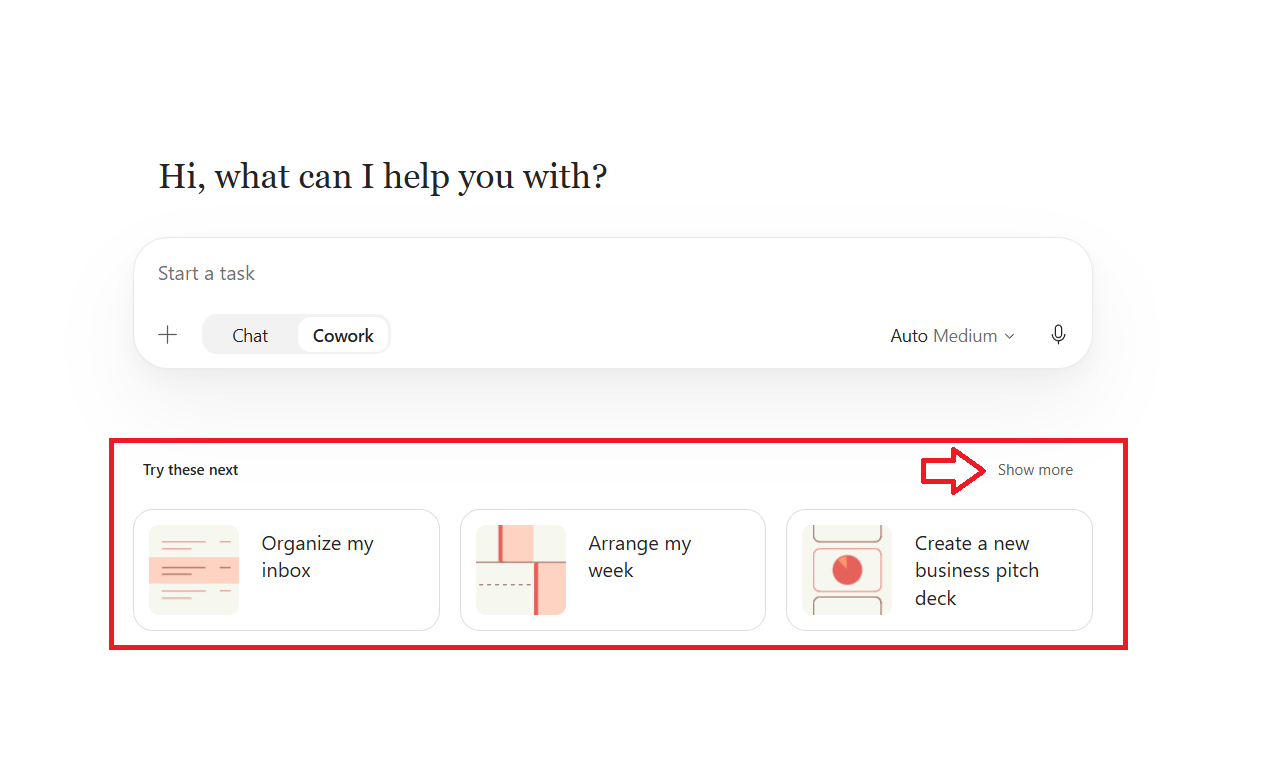
- Type your request into the chat box, or pick one of the suggested prompts, such as Catch me up, Organize my week or Prep for a meeting.
- Follow along as Cowork works. The side panel on the right shows each step, the skills Cowork is using and any files it creates.
- Review and approve any actions when asked. Before Cowork sends an email, posts in Teams or schedules a meeting, it shows you a preview so you can approve, change or cancel it.
Any files Cowork creates appear in the side panel, where you can preview or download them. They’re also saved to the Cowork folder in your OneDrive.
Choosing a model and effort level
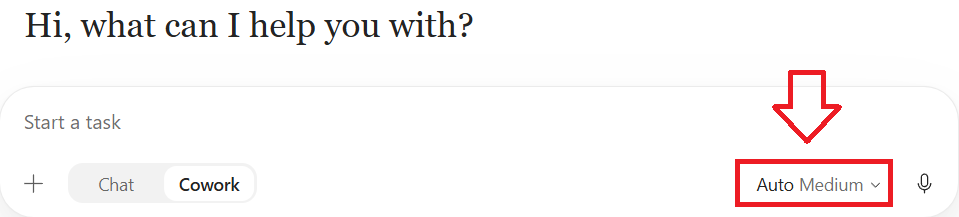
In the Cowork message box, you’ll see Auto Medium. These are two separate settings, and it’s easy to be unsure which to pick.
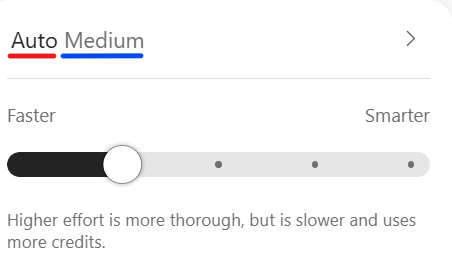
Auto is the AI model Cowork uses. Microsoft’s advice is “Most of the time, leave the picker on Auto so Cowork can choose the model for your task.”
Medium is the effort level, which controls how hard Cowork thinks. Select it to open a slider that runs from Faster on the left to Smarter on the right:
- Light: quick, simple tasks, such as a short email.
- Medium: the default, and the right choice for most everyday work.
- High and Extra High: when you need deeper analysis or a more thorough result.
- Max: for your hardest work.
As the slider itself warns, higher effort is more thorough, but is slower and uses more credits. Your choice stays selected for future tasks, so remember to move it back afterwards.
Tip: If you’re not sure, leave it on Auto Medium. Only move the slider to the right if the result isn’t as detailed as you need.
Tips for writing a good Cowork prompt
You don’t need to write a perfect prompt, but a little detail goes a long way.
The most important tip is to lead with the outcome. Tell Cowork what you want to end up with, rather than listing every step. For example, instead of “Find my emails with Contoso, then summarise them, then find the latest deck”, try “Get me ready for Thursday’s meeting with Contoso and draft a one page briefing I can review before the call.”
When I write a Cowork prompt, I also try to cover the following:
- Where to look, such as my inbox, a Teams channel, my calendar or a specific file.
- What I want back, such as a summary, a table, a Word document or a draft email.
- Any preferences, such as length, tone or who it’s for.
- What it should check with me first, such as sending an email or Teams message on my behalf.
If Cowork needs more information, it will ask you a question and give you options to pick from. You can also skip the question and let it carry on with what it already has.
Tasks to try in Cowork
Note: The prompts below are examples. Replace the names, projects and dates with your own.
Task 1: Get a daily briefing
Mornings are often the busiest part of the day, and it’s easy to lose the first hour just catching up. Cowork includes a Daily Briefing skill designed for exactly this, so you can start the day knowing where to focus rather than digging through messages to find out.
Prompt:
Catch me up on what’s happened since I logged off yesterday across Outlook and Teams, and check what’s in my diary today. Give me a short list of my top priorities, point out anything that needs an answer before lunch, and highlight anything I should prepare ahead of today’s meetings.
Once you’re happy with the briefing, you can ask Cowork to run it for you automatically.
Prompt:
Send me this daily briefing every weekday at 7:30am
Next, you will need to complete the automation wizard as shown in the image below.
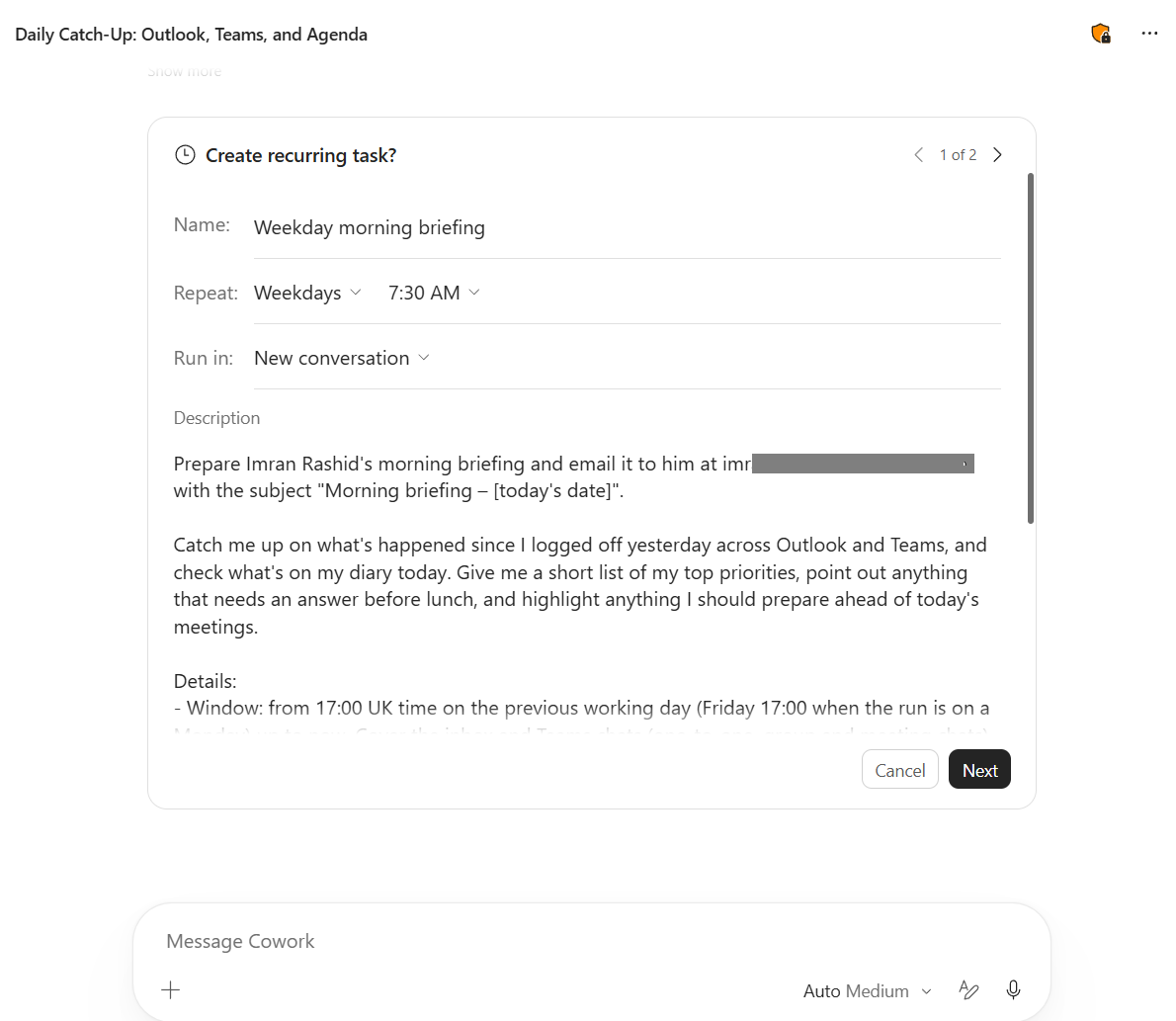
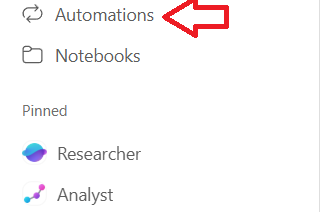
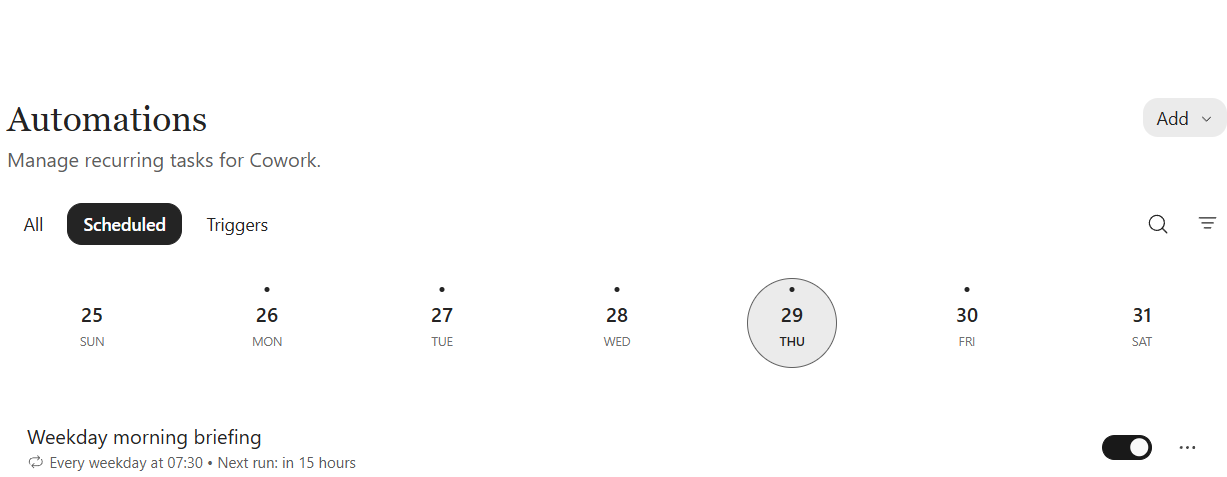
Note: You can manage your scheduled prompts from the Automations page. You can create up to 25 of them at the time of writing this post.
Task 2: Prepare for an upcoming meeting
Prompt:
I have a meeting with NAME HERE tomorrow about the Copilot Adoption project. Review our recent emails, Teams chats and shared documents, then create a one page briefing as a Word document covering the background, key discussion points and open questions. Draft a short agenda and email it to the attendees, and block 30 minutes in my calendar beforehand to read the briefing. Check with me before sending or booking anything.
Cowork will find the relevant information itself, so you don’t need to attach anything. If you’d rather point it at specific files, you can attach them or select them from OneDrive.
Task 3: Turn meeting notes into actions
After a meeting, paste your notes into Cowork or attach the file, and let it do the tidying up.
Prompt:
Using these meeting notes, create a list of actions with an owner and a suggested due date for each one. Then draft a follow up email to the attendees summarising what was agreed. Show me the email before sending it.
Cowork will show you a preview of the email. Read it through, make any changes and select send the email when you’re happy. If you’re trying this for the first time, send it to yourself first.
Task 4: Research a topic
Cowork can search inside your organisation as well as carry out deep research, which pulls together information from multiple sources into a single report.
Prompt:
Carry out deep research on best practices for rolling out Microsoft 365 Copilot to a 500 person organisation. Cover training, governance and how to measure success. Only use sources from the last two years and include links to every source.
Continue to task 5 below
Note: Always read through the results and check the sources before you rely on them. AI can get things wrong.
Task 5: Turn your research in task 4 into a report and a presentation
Stay in the same task so Cowork can reuse what it has already found.
Prompt:
Turn this research into a two page Word report for our leadership team, written in plain English, and a five slide PowerPoint presentation summarising the key recommendations. Then post a short summary of the key findings in the CHANNEL NAME channel in Teams, with links to both files, and find a 30 minute slot next week to go through them with NAME HERE. Show me the post and the meeting invite before anything goes out.
Note: You could also ask Cowork to send the Teams chat message to someone directly.
Task 6: Create your own custom skill
So what exactly is a skill? Think of it as a set of written instructions, a bit like the step by step guide you’d give a new colleague so they do a job exactly the way you like it. Each skill is a simple text file containing a name, a short description that tells Cowork when to use it, and the instructions it should follow. When your request matches that description, Cowork loads the skill automatically and you’ll see it appear in the side panel.
Cowork already comes with built in skills for Word, Excel, PowerPoint, PDF, email, scheduling, meetings, daily briefings, enterprise search, communications and deep research. You can add up to 50 of your own, and Cowork picks them up automatically at the start of each session. You can also share a skill with specific people in your organisation, so everyone on your team gets the same results.
Why bother creating one? Without a skill, you have to explain how you want something done every single time, and the results can vary from one day to the next. With a skill, you explain it once. Your prompts become shorter, the output stays consistent, and you can improve the skill over time as you spot things you’d like done differently.
A good rule of thumb, if you find yourself typing the same instructions into Copilot again and again, it’s probably time to turn them into a skill. Here are a few ideas to get you thinking:
- Weekly status report. Pulls together your sent emails and meetings from the past week and turns them into a summary organised by project. You get the same format every Friday without starting from scratch.
- Meeting minutes in your own style. Turns your notes or a meeting transcript into minutes with decisions, actions and owners, laid out exactly the way your organisation expects. No more reformatting before you share them.
- Training session follow up. Turns your session notes into a thank you email for attendees, with key takeaways, links to resources and any agreed actions. Every attendee gets a polished follow up, even after a busy day of delivery.
- Reply to customers in your company’s tone. Drafts responses to customer queries using your organisation’s tone of voice, greeting and sign off. Replies stay consistent no matter who on the team sends them.
- New starter welcome pack. Creates a welcome email, a first week schedule and a list of useful contacts and links for a new team member. Onboarding feels organised and nothing gets forgotten.
One skill I find really useful is one that gives my work a second opinion before I share it. Let’s create it.
Prompt:
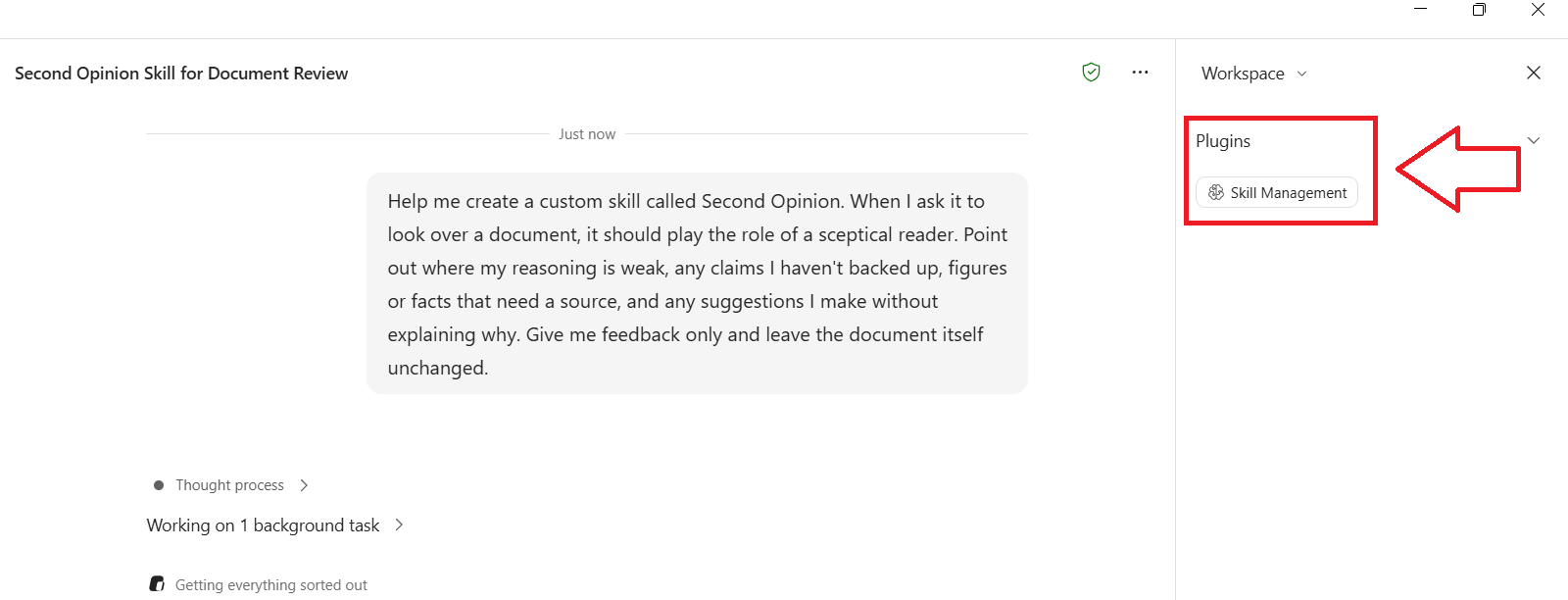
Help me create a custom skill called Second Opinion. When I ask it to look over a document, it should play the role of a sceptical reader. Point out where my reasoning is weak, any claims I haven’t backed up, figures or facts that need a source, and any suggestions I make without explaining why. Give me feedback only and leave the document itself unchanged.
Cowork will walk you through naming and describing the skill, then save it to the Cowork skills folder in your OneDrive. You can also create skills from the Customise page in Cowork.
Review and click approve
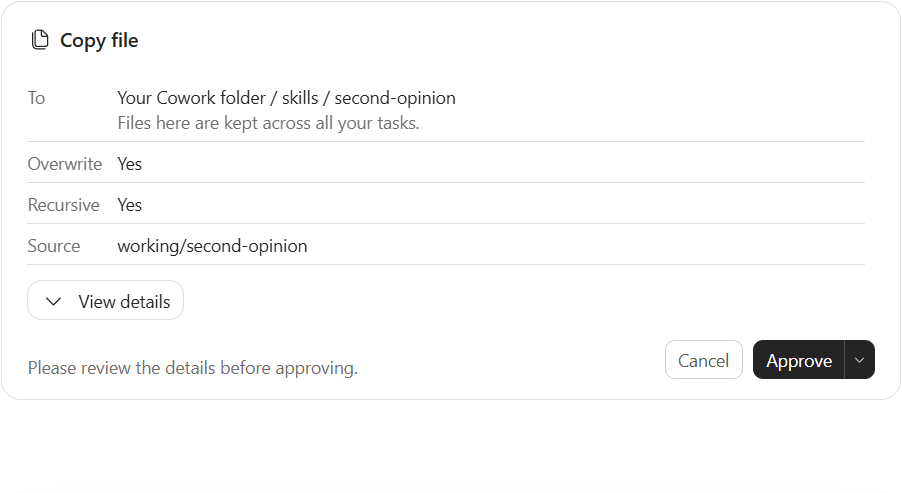
When you create or update a skill, Cowork automatically scores it out of 100 (as shown in the image below) across four areas: whether it triggers at the right time, how specific the instructions are, whether it stays within its purpose and how well it handles unexpected input. It also suggests improvements, which is a handy way to make your skill more reliable.
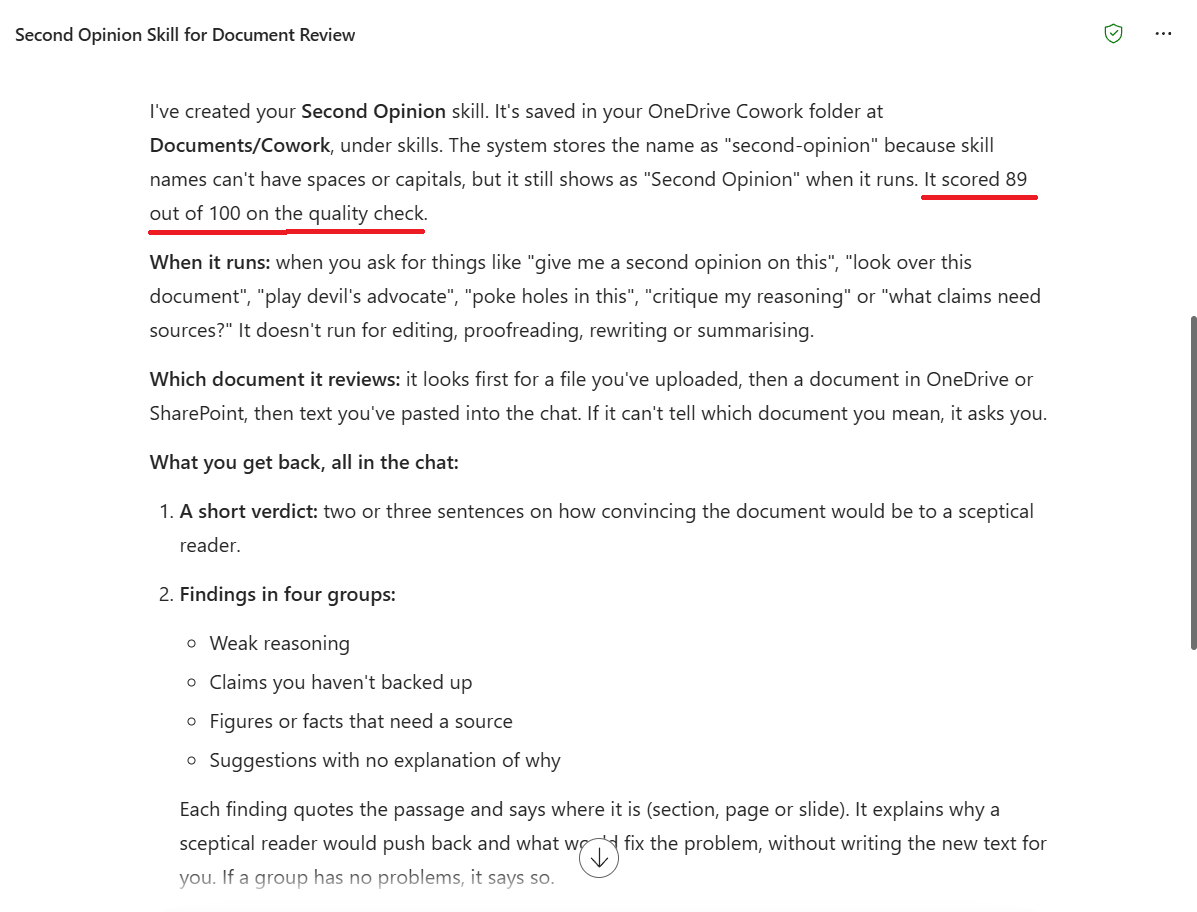
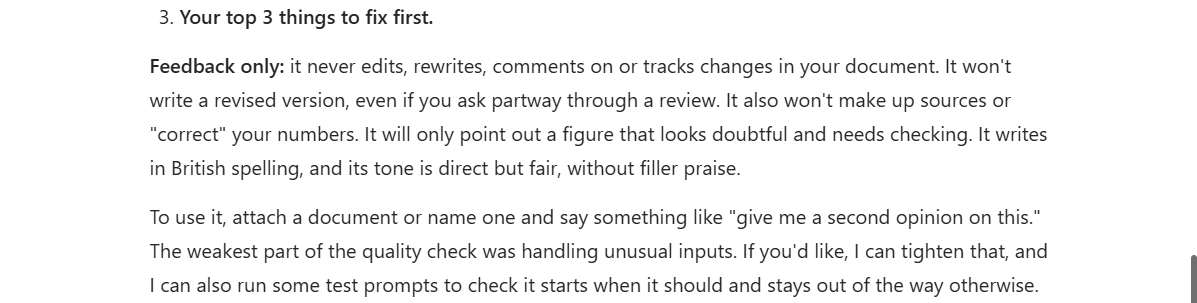
Note: Microsoft doesn’t validate custom skills created by users. Review custom skill outputs carefully.
Task 7: Let Cowork react when something happens
As well as running on a schedule, Cowork can run a task when something happens, such as when you receive a particular email or are mentioned in Teams.
Prompt:
Whenever my manager emails me about the Copilot Adoption project, summarise the email and draft a reply for me to review.
Cowork shows you what will trigger the task, what it will do and what permissions it needs, before you select Set up. By default, these tasks prepare actions for your approval rather than sending anything on their own.
Task 8: Organise your week
Copilot Chat can tell you what’s in your diary, but Cowork can actually make changes to it. This is a great way to claw back some time for focused work.
Prompt:
Look at my calendar for next week. Tell me how many hours I’m spending in meetings, flag any clashes and suggest which meetings I could decline or shorten. Add two 90 minute focus blocks for preparing course material, and draft a short, polite note to the organiser of any meeting I decide to decline. Ask me before changing anything.
Cowork may ask you a few questions first, such as which meetings matter most to you. It then shows each proposed change so you can approve or skip it, and makes the changes directly in your calendar.
Task 9: Tidy your inbox with a rule
If newsletters and automatic notifications keep burying the emails that matter, Cowork can set up an Outlook rule for you, without you needing to know where the rules settings live.
Prompt:
Look at my inbox for the last two weeks and tell me which newsletters and automatic notifications I receive most often. Then create an Outlook rule that moves them into a folder called Read Later, so my inbox only shows emails that need my attention.
Before the rule is created, Cowork shows you an approval card explaining exactly what the rule will do, so there are no surprises.
Task 10: Update an existing file
Cowork doesn’t just create new files. It can also edit a Word document, Excel spreadsheet or PowerPoint presentation you already have in OneDrive or SharePoint, and save the changes back to the same file.
Prompt:
Open the Training Schedule spreadsheet in my OneDrive and add the three Copilot sessions which are currently in my calendar next month, including the date, time and number of people invited. Then update the dates on slide 2 of my Copilot Training Overview presentation to match.
Tip: Type / in the chat box to pick a file from OneDrive or SharePoint. When Cowork asks for permission to edit the file, you can allow it once or for the rest of the conversation. If you change your mind, the file’s version history means you can always go back to an earlier copy.
Task 11: Plan a training session from start to finish
This is where Cowork really shines, because one request covers your calendar, Word and Teams all at once.
Prompt:
I’m running a one hour Introduction to Copilot Cowork session for the Sales team in the week commencing 16 November. Find a time when NAME HERE and NAME HERE are both free, create a Teams meeting invite with a short description, write a one page Word handout for attendees, and post a message in the CHANNEL NAME channel in Teams letting everyone know the date and what to expect. Show me everything before it goes out.
Cowork works through each step, then asks you to approve the meeting invite and the Teams post before anything is sent. Doing all of this by hand would mean switching between four different apps.
Task 12: Build a simple app
Using the App skill, Cowork can build a small interactive app from a plain English description. No coding is needed.
Prompt:
Build an app to track my training sessions. For each session I want to record the course name, date, number of attendees and average feedback score, and see a chart of feedback scores over time.
You can then ask Cowork to add features, such as a filter by course, and the app updates as you go. Once you’re happy, you can publish it and share a link with colleagues who use Microsoft 365 Copilot.
Note: The App skill is currently a preview feature at the time of writing this post and requires your organisation to be part of Microsoft’s Frontier programme.
Task 13: Clear out your inbox
Copilot Chat can tell you which emails look unimportant, but Cowork can actually do something about them. It can sort emails into folders and delete the ones you don’t need, which makes it a great way to get on top of a busy inbox.
Prompt:
Go through my inbox from the last 30 days. Move any emails from outside my organisation that are newsletters, marketing or event invitations into a folder called External Updates. Delete any promotional emails I haven’t opened. Leave anything from my manager, or anything that mentions a deadline, where it is. Show me the full list before you move or delete anything.
Cowork shows you what it plans to do before it goes ahead, and actions such as deleting come with a risk level indicator so you can see the impact at a glance. My advice is to start with a short time period, check the list carefully the first time, and only widen it once you’re happy with the results.
Task 14: Reorganise your OneDrive
If your OneDrive has become a dumping ground, Cowork can create new folders and move your files into them for you.
Prompt:
Look at the files in my OneDrive Documents folder from the last six months. Create a folder for each course I deliver and move the matching files into it. Put anything you’re not sure about into a folder called To Sort, and give me a summary of what you moved.
Note: Cowork can’t delete files or folders in OneDrive or SharePoint, so nothing is lost while it tidies up. It only creates folders and moves files around.
Task 15: Create and send an email newsletter
Cowork can design and send HTML newsletters by email, which is perfect for regular updates to your team or the people you train.
Prompt:
Create an email newsletter called Copilot Tip of the Month. Include three practical Copilot tips for beginners, a short introduction from me and a reminder about my next training session on DATE HERE. Use a clean, professional layout and send it to EMAIL ADDRESS HERE. Show me a preview before sending.
Once you’re happy with the first edition, you can ask Cowork to put together a new one on a schedule, such as the first Monday of every month.
Task 16: Let Cowork use the web for you
Cowork can also complete web tasks using a browser on your device. It can open websites, read live pages and work through steps on a site for you. It can then turn what it finds into a Word document or a Teams post, and it will show you a message for approval before posting it.
Prompt: Go to the Microsoft 365 roadmap website and find the Copilot features that have started rolling out this month. Summarise the five most useful ones for my training attendees in a short Word document, then post a quick summary in the [CHANNEL NAME] channel in Teams. Show me the post before it goes out.
Note: The browser feature is currently in preview, so it may not be available in your organisation at the time of writing this post.
Task 17: Create images for your work
Cowork includes a built-in image generation skill, so you can create visuals for slides, handouts and newsletters without leaving the conversation. It can also let people know when materials are ready by posting in Teams or sending an email.
Prompt:
Create a landscape banner image for my Copilot Cowork training course in a clean, modern style using blue tones, showing a person at a desk working alongside a friendly AI assistant, with no text in the image. Add it to the title slide of my Copilot Training Overview presentation and to the top of my Copilot Cowork Handout document in OneDrive. Then post the image in the [CHANNEL NAME] channel in Teams with a short message letting everyone know the materials are ready. Show me the post before it goes out.
Note: If something about the image isn’t quite right, just ask for a change, such as “make the background lighter”. Finished images are saved to your session and to the Cowork folder in your OneDrive, ready to drop into your slides or handouts.
Task 18: Send a personal follow up to every attendee
Instead of one generic email to everyone, Cowork can read a list of attendees and write a separate, personalised email for each person.
Prompt:
Open the Copilot Training Attendees spreadsheet in my OneDrive. For each person on the list, write a short, friendly follow up email that thanks them by first name, mentions the course they attended and includes one tip that suits the question they asked during the session. Send each email individually and show me every email before it goes out.
Note: When several emails are waiting for approval, you’ll see an Approve All button showing how many are pending, such as Approve All (12). Read through a few first to check you’re happy with the tone before approving the rest.
Task 19: Turn survey results into a dashboard
If you collect feedback after every session, Cowork can do the analysis for you and turn the numbers into something your manager will actually read.
Prompt:
Analyse the Course Feedback spreadsheet in my OneDrive. Create a new Excel workbook with a summary of average scores by course, the most common comments and a chart showing how scores have changed over the last six months. Then create a three slide PowerPoint presentation highlighting what’s working and what needs to improve, and draft an email to NAME HERE with both files attached.
Doing this by hand could easily take an afternoon. Cowork works through the analysis, the workbook, the presentation and the email in one go, and you check each one before anything is sent.
Task 20: Answer questions in Teams for you
Task 7 showed Cowork reacting to an email. It can also keep an eye on Teams, which is ideal if people regularly ask you questions in a channel.
Prompt:
Whenever I’m @mentioned in the CHANNEL NAME channel in Teams, look through my training materials in OneDrive for an answer and draft a reply for me to approve. If you can’t find an answer, just send me a one line summary of the question.
Cowork shows you a card explaining what will trigger the task, what it will do and the permissions it needs before you select Set up. By default, it prepares replies for your approval rather than posting on its own.
Task 21: Put your weekly report on autopilot
Combine a schedule with the files and emails Cowork can already see, and your Friday report practically writes itself.
Prompt:
Every Friday at 3pm, look at my sent emails, meetings and Teams messages from the past week and create a short Word report organised by project, covering what I completed, what’s in progress and anything I’m waiting on. Then save a draft email to NAME HERE with the report attached, so I can review it before sending.
Asking for a draft email means nothing goes out without you checking it first. If you’ve created a weekly report skill, mention it in the prompt so the report follows the same format every week.
Task 22: Connect Cowork to other systems with plugins
Plugins from the Microsoft 365 App Store add new skills and connectors to Cowork, so it can work with tools beyond Microsoft 365, such as your organisation’s ticketing or customer management system. Your IT administrator can deploy plugins for everyone and decide which ones are available.
To find them, open the Browse plugins menu in Cowork. Once a plugin is installed, its skills appear alongside the built in ones and you simply ask for what you need.
Prompt:
Using the PLUGIN NAME plugin, find all the open requests assigned to me, summarise them in a table by priority and draft an update for each one. Check with me before updating anything.
Note: The plugins available to you depend on what your organisation has approved. Cowork asks for your approval before a plugin takes any action on your behalf.
Task 23: Teach Cowork how you like to work
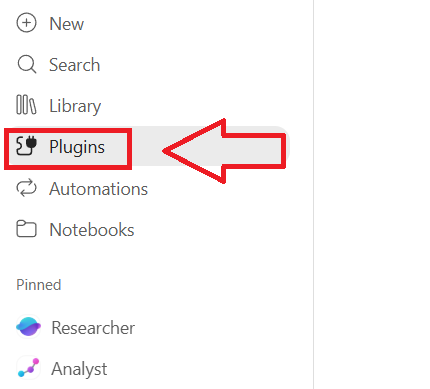
Rather than repeating your preferences in every prompt, you can give Cowork custom instructions that it applies to every task. Open the Customise page in Cowork in the left pane, select the Preferences tab and add something like this:
Note: If the customise option does not exist, click Plugins from the left pane.
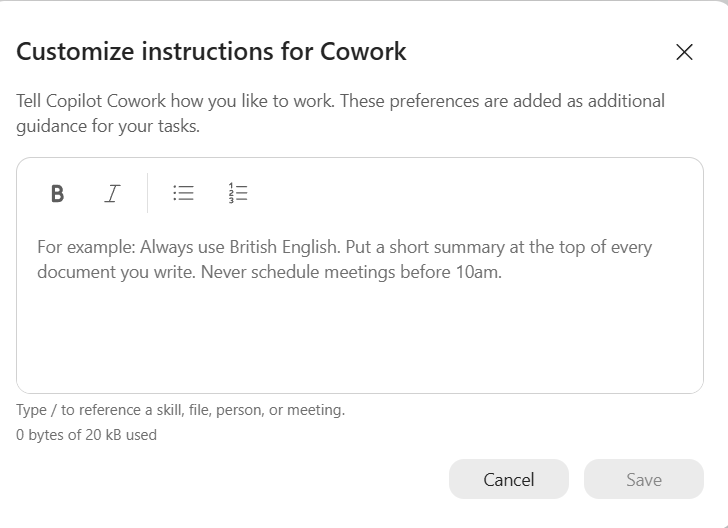
Example instructions:
I’m a technical trainer based in the UK. Always use British English. Keep emails short and friendly, start them with Hi and sign off with Thanks, Imran. Use plain English and explain any technical terms. Never book meetings before 9:30am or on Friday afternoons.
From then on, every email, document and meeting Cowork creates follows these rules automatically. Your instructions are personal to you.
Task 24: Change direction while Cowork is working
You don’t have to wait for Cowork to finish before adding something new. If you think of something else while it’s working, just type another message. It’s queued automatically, and if your new message changes the direction of the task, Cowork adjusts its approach.
Prompt:
Prepare a two page Word summary of everything that happened on the Copilot Adoption project this month.
Then, while it’s still working, add:
Prompt:
Also create a five slide PowerPoint version, and book 30 minutes with NAME HERE next week to go through it.
Task 25: Use Cowork on the go
Cowork is also available in the Microsoft Copilot mobile app for iPhone and Android, so you can hand over work while you’re away from your desk, for example between training sessions or on the train home.
Prompt:
I’ve been delivering training all day. Catch me up on anything urgent in my email and Teams since 9am, and draft replies to anything that needs an answer today so I can review them when I’m back at my desk.
You can then pick the task up from your recent tasks when you’re back at your computer.
Note: At the time of writing this post, custom skills aren’t currently supported in Cowork on mobile, so tasks that rely on your own skills are best started on your computer.
What else can Cowork do?
The 25 tasks above are just a starting point. If you’re not sure whether Cowork can help with something, just ask it: “What can you help me with?” or “Can you do this for me?”
I asked Cowork what it can do for me that Copilot Chat can not, response below:
Email (Outlook)
- Send, reply to, reply-all and forward emails with attachments, directly from a request.
- Act on your inbox: flag, move, delete or mark messages as read, in bulk.
- Create mail folders and inbox rules, and set out-of-office replies.
Calendar & Meetings
- Cancel, accept, decline or forward meetings, and book rooms, without you opening Outlook.
Teams
- Post messages, reply in channel threads, and create chats or channels.
Files, OneDrive & SharePoint
- Upload files, create folders, and create or update SharePoint sites, lists and list items.
Creating documents & content
- Edit your existing Word, PowerPoint and Excel files in place, including tracked changes, comments and table updates.
- Check every page of a finished file for layout problems and fix them before handing it over.
- PDFs: merge, split, fill in forms, add watermarks and read text from scanned pages.
- Build working, shareable apps such as quiz, attendance or feedback trackers.
Data & analysis
- Count, total and compare across hundreds of emails, meetings or files at once, with calculated rather than estimated figures.
Research
- Use a browser to fill in web forms, make bookings or get live information from websites.
Automation & productivity
- Set up triggers that act when something happens, like a certain email arriving or a file landing in a folder.
- Edit OneNote pages: add notes, tick off to-dos, insert tables.
How I work
- Finish a whole multi-step job from one request, for example find, analyse, build, save and send.
- Work on several pieces in parallel, such as a deck, a handout and an attendee email, then combine the results.
Note: What Cowork can do depends on how your organisation has set it up, including which plugins and connectors are available. Cowork always asks for your approval before it sends, changes or shares anything.
What is the difference between Cowork and Microsoft Scout (now Autopilot)?
Another question I get asked a lot is how Cowork is different from Microsoft Scout. The names are often mixed up, so let me clear this up.
Important: Microsoft Scout has been renamed Autopilot. Microsoft announced the new name on 25 September 2026, so if you see Scout in older articles and videos, it’s the same product as Autopilot. It’s also worth knowing that Microsoft is making this simpler. In its announcement of the new Copilot, Microsoft said “coming soon, you won’t need to choose a mode: simply state what you need to accomplish, and Copilot will route the work to Chat, Cowork or Code, whichever capability is right for the job.” In other words, you won’t need to decide between Chat and Cowork yourself. If you’d like to learn more about the upcoming/latest changes to Copilot, including Microsoft Scout becoming Autopilot, check out my post: The New Copilot, Explained Simply: Home, Code and Autopilot
The easiest way to tell them apart is to ask one simple question: who starts the work?
- Cowork waits for you. You give it a task, it plans the steps and carries them out across Microsoft 365, checking with you before anything important happens. When the task is finished, it stops.
- Autopilot (Scout) keeps going on its own. Microsoft describes it as a persistent, proactive and personal agent that keeps working even when you’re not. It runs in the background, learns your priorities and acts on them without you having to prompt it each time.
Use Cowork when:
- You have a specific piece of work you want done, such as a report, a meeting briefing or tidying your inbox.
- You want to review and approve the important steps along the way.
- The task has a clear finish line.
Use Autopilot (Scout) when you want ongoing help that doesn’t stop. For example, Autopilot can:
- Keep track of follow ups and remind you before anything slips through the cracks.
- Spot upcoming deadlines and block time in your calendar so you can prepare.
- Keep an eye on a project, then let you know when it has stalled since your last customer call and help you arrange a meeting with the customer.
- Coordinate meeting times with people in different time zones, without you having to go back and forth.
- Flag the meetings that matter most and pull together the materials you need beforehand.
- Notice decisions that have been waiting too long and nudge the right people before they hold the project up.
- Watch a Teams channel or email thread and follow up on questions that haven’t been answered.
- Send regular project updates to your team without being asked each time.
- Act on your behalf within the rules you and your organisation have set.
Note: Autopilot is still in private preview and may not be visible to you at the time of writing this post.
There are a couple of other differences worth knowing. Cowork works as you and uses your permissions. Autopilot (Scout) has its own identity in your organisation, so everything it does is recorded as the agent’s action and stays within the permissions and policies you and your organisation set. And while Scout started life as a desktop app, Autopilot runs in the cloud, so it can keep working even when you’re away from your computer.
Cowork can also run tasks on a schedule or when something happens, as you saw earlier in this post. The difference is that you set each of those tasks up yourself. Autopilot is designed to work out what needs doing next by itself.
In short, Cowork is like a colleague you hand a task to, and Autopilot is like a teammate who keeps work moving in the background. They’re designed to work alongside each other, not replace one another.
And that’s it. I hope you found this post useful. Thanks for reading.

