
In this post, I’ll show you how to build an IT Support agent in Microsoft Copilot Studio. The agent will:
- Help users troubleshoot IT issues using articles from cloudbuild.co.uk. However, the knowledge source can be replaced with SharePoint or another application.
- Log a ticket in a SharePoint list if it can’t find an answer or if the user requests a ticket to be created. The application could be replaced with an app such as ServiceNow or Jira if needed.
- Respond to the user with a ticket number.
- Post an Adaptive Card in the IT team’s Teams channel with the ticket details and a View ticket link allowing the IT team to view the ticket in SharePoint.
You don’t need any coding experience.
What you’ll need
- Access to Copilot Studio where you can create agents.
- A SharePoint site where you have edit rights. This will hold your helpdesk ticket list.
- A Microsoft Teams team with a channel for IT support. You need to be a member of it.
- About 45–60 minutes to set up this demo.
Note: An Adaptive Card is a neat, formatted message box in Teams. It can show headings, a table of details and buttons, instead of a block of plain text.
Step 1: Create the SharePoint list for IT Helpdesk tickets
The SharePoint list stores every ticket the agent logs. It works like a simple spreadsheet.
- Open your IT SharePoint site
- Select + New > List
- Select Blank list
- Name it IT Tickets and select Create
- Select + Add column to add each column documented in the table below. Insert the column name as shown in the table below, and select Save.
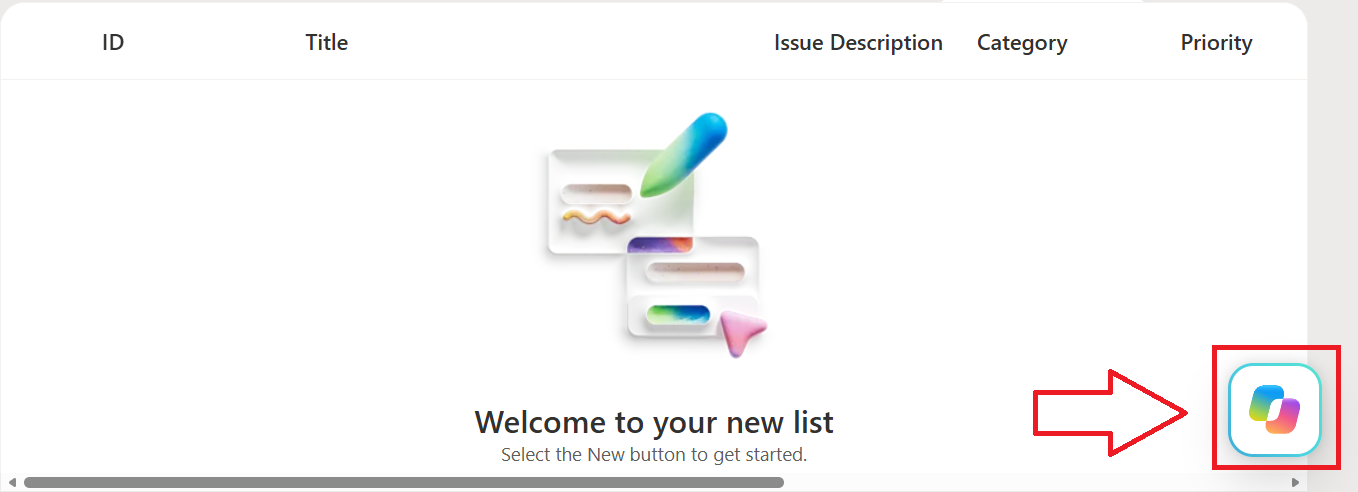
Note: If you have access to Copilot in SharePoint, click the Copilot icon which appears in the bottom right corner and ask Copilot to create the list and columns for you. If you have already create a blank list, ask Copilot to add all columns.
| Column name | Column type | What to enter |
|---|---|---|
| Title | (already exists) | Leave as it is. This will hold a short summary of the issue |
| Issue Description | Multiple lines of text | — |
| Category | Choice | Hardware, Software, Network, Account/Access, Email, Other |
| Priority | Choice | Low, Medium, High, Critical (set the default to Low) |
| Steps Tried | Multiple lines of text | — |
| Reported By | Single line of text | — |
| Status | Choice | New, In Progress, Resolved, Closed (set the default to New) |
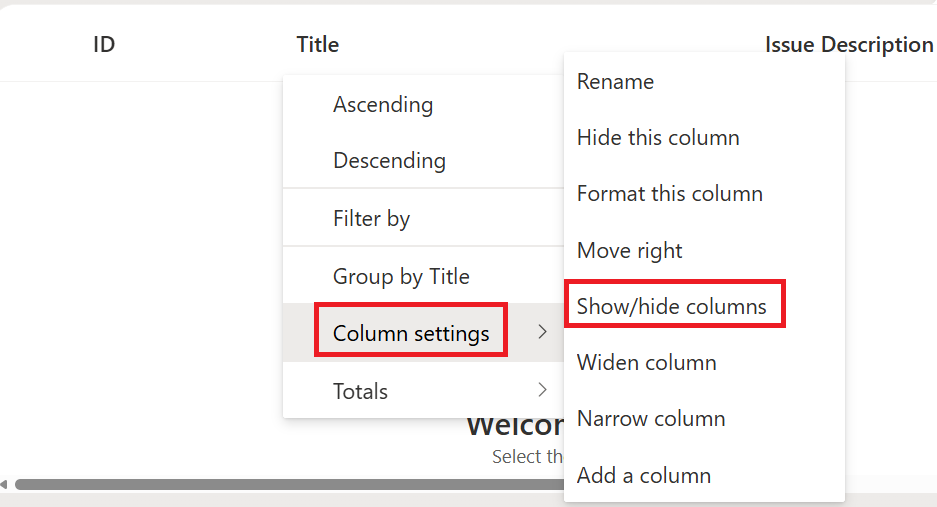
6. Click the Title column, click Column settings, click Show/hide columns, and click ID from the list. Then drag the ID column to the front before the Title column as shown in the image below. We will use the ID column for the ticket reference number.
7. After you have created the SharePoint list, copy the SharePoint List link as you will need it later.
Step 2: Create the agent
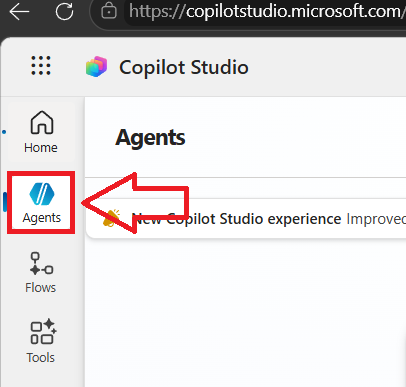
- Go to https://copilotstudio.microsoft.com and sign in.
- Check the environment in the top right corner if using the standard harness, or bottom right corner if using the new GitHub Copilot harness. Your organisation may have a specific environment for agents. I’m using the standard harness for this demo.
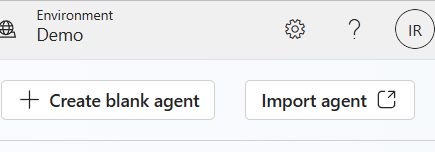
3. Click + Create blank agent
4. Fill in these fields:
Agent name: IT Support
Description: Helps employees troubleshoot IT issues using cloudbuild.co.uk guidance and logs a ticket for the IT team when no solution exists.
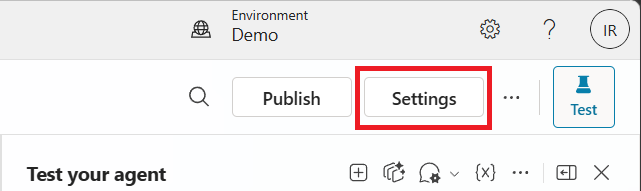
5. Now, let’s stop the agent from making up answers. With the agent’s general knowledge turned off, the agent answers only from the sources you give it, which in my case will be cloudbuild.co.uk. If the site has no answer, the agent knows to log a ticket instead of guessing. Select Settings (top right).
6. Scroll down to Knowledge and toggle off the option, Allow ungrounded responses
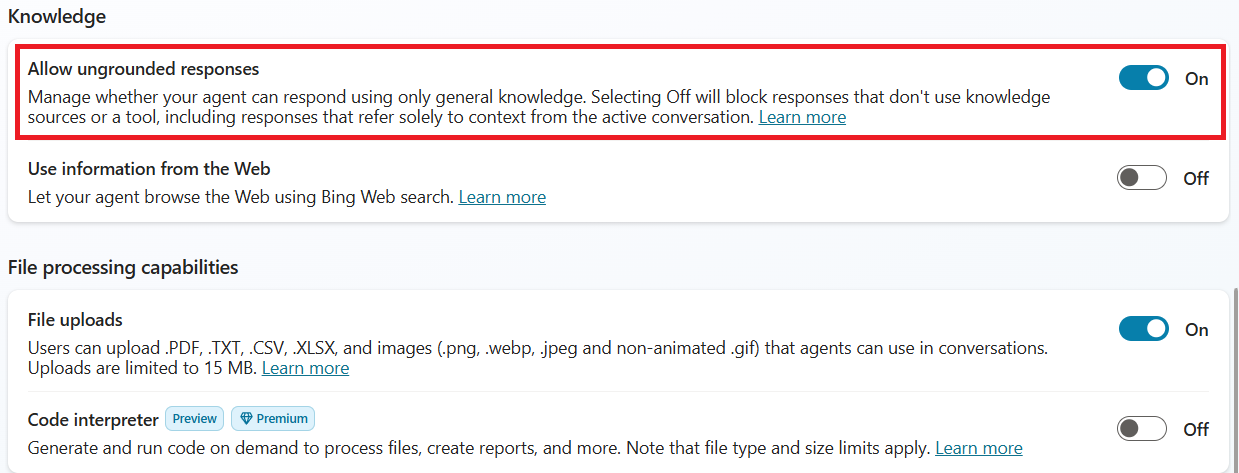
7. Select Save and close settings.
Step 3: Give the agent its instructions
The instructions are where you tell the agent how to behave when users chat with it.
- Go to the Overview tab.
- Next to Instructions, select Edit.
- Type your agent instructions and click Save
You are a friendly IT Support assistant for employees.

1. When a user reports an IT issue, ask short clarifying questions if
   needed (device, app, error message, when it started).
2. Always search the Cloud Build knowledge source (cloudbuild.co.uk)
   first. Give clear, numbered troubleshooting steps and include a link
   to the article you used.
3. After giving the steps, ask: "Did that fix the issue?"
4. If the knowledge source has no relevant information, OR the user says
   the steps did not work:
   - Tell the user you will log a ticket with the IT team.
   - Create a short title and a clear description of the issue.
   - Choose a category (Hardware, Software, Network, Account/Access,
     Email or Other) and a priority (Low, Medium, High or Critical).
     Ask the user if you are unsure.
   - Summarise any steps already tried.
   - Do not use quotation marks in any of the ticket details.
   - Use the "HelpdeskFlow" tool.
   - Then confirm: "Your ticket #[TicketID] has been logged and the IT
     team has been notified in Teams."
5. Never make up troubleshooting steps that are not in the knowledge
   source.
6. Keep answers short, friendly and in plain English.
Step 4: Add cloudbuild.co.uk as a knowledge source
Note: you could also select SharePoint or a third party app as a knowledge source which may be more appropriate in the real world. For the purpose of this demo, I’ll be connecting to my website, cloudbuild.co.uk
- On your agent’s Overview page, scroll to Knowledge and select + Add knowledge. Or select the Knowledge tab towards the top of the page.
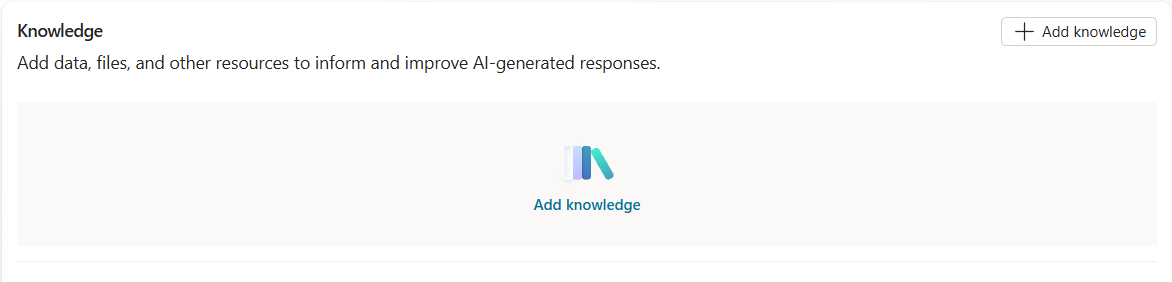
2. Select Public websites.

3. In the Public website link box, type https://cloudbuild.co.uk and select Add (Replace cloudbuild.co.uk with you own link)
Note: the website must be public. URLs that point to a website requiring authentication or ones not indexed by Bing aren’t supported.
4. Replace the auto filled Description with something more detailed, such as, Troubleshooting guides and how-to articles for Microsoft 365, Copilot, Azure, Outlook, Teams, Excel and general IT issues. Use this first for any IT support question.
5. Select Add to agent.

Step 5: Create the Log IT Ticket flow
This is the main part of the build. The flow is a small automation that does three things:
- Creates the SharePoint ticket.
- Posts the Adaptive Card to Teams.
- Sends the ticket number back to the agent.
5a. Create the flow and its inputs
- In your agent, select the Tools tab at the top.
- Select + Add a tool > New tool and then Workflows.
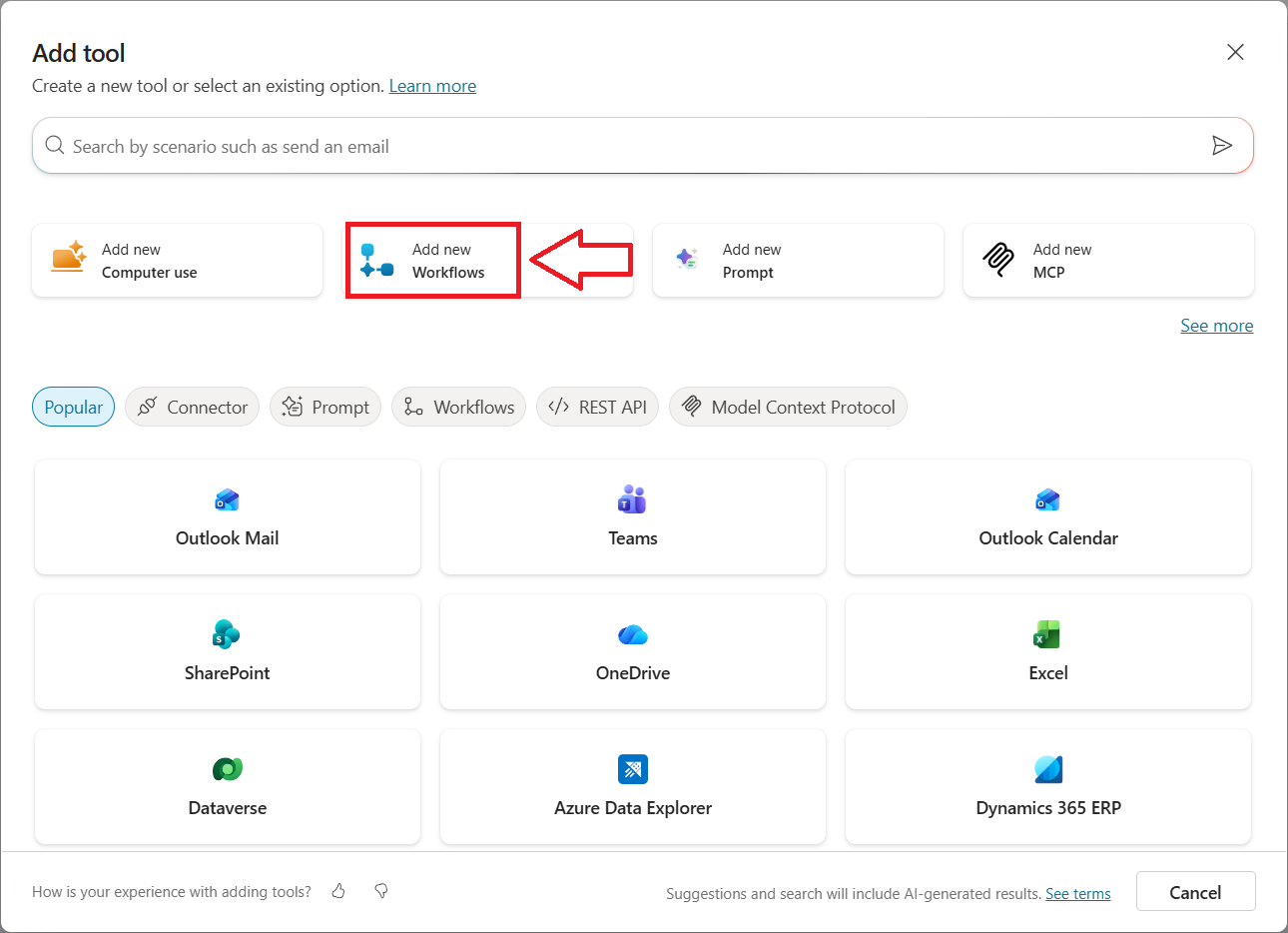
3. The flow designer opens with a trigger called When an agent calls the flow. Select it.
We will now add Inputs. Inputs are the details the agent passes to the flow, like filling in a form before you submit it.
4. Select + Add an input and then Text six times and name the inputs along with the descriptions as documented below.
| Name | Description |
|---|---|
| IssueTitle | A short summary of the issue, for example Outlook not opening |
| IssueDescription | A full description of the issue in the user’s words |
| Category | One of: Hardware, Software, Network, Account/Access, Email, Other |
| Priority | One of: Low, Medium, High, Critical |
| StepsTried | Troubleshooting steps already tried |
| UserEmail | The email address of the user reporting the issue |
5b. Add the SharePoint ‘Create item’ action
- Select the + icon below the trigger named When an agent calls the flow, then click Add an action.
- Search for SharePoint and select Create item.
- If asked, sign in to create a connection.
- Fill in these fields:
– Site Address: choose your IT site from the drop down, or paste the address you copied earlier.
– Select your list name: IT Tickets
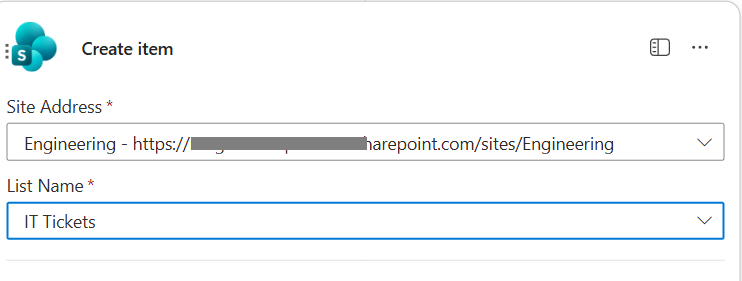
5. Your list columns should now appear. For each one, click in the box, select the lightning bolt ⚡ (dynamic content) icon and pick the matching input as shown in the image and table below. If they don’t all appear, click Show all next to advanced parameters.
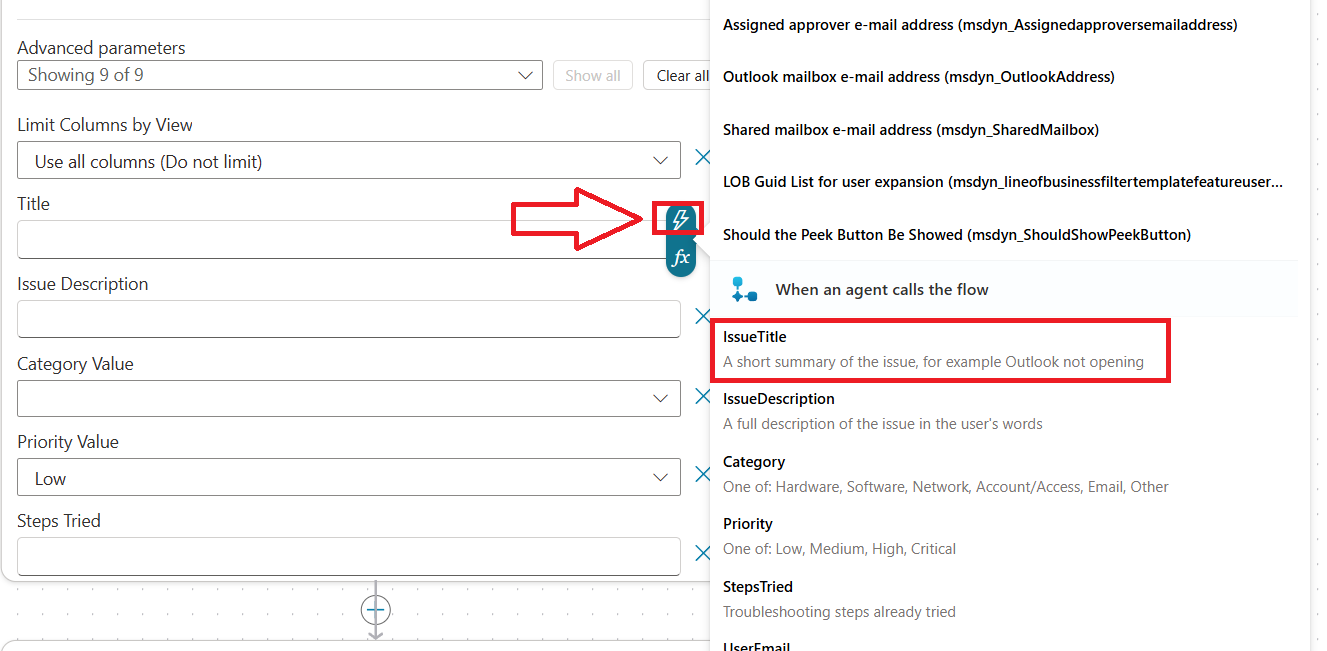
| List column | Value |
|---|---|
| Title | ⚡ IssueTitle |
| Issue Description | ⚡ IssueDescription |
| Category Value | ⚡ Category (Click enter custom value, then click the dynamic content icon and select category.) |
| Priority Value | ⚡ Priority (Click enter custom value, then click the dynamic content icon and select priority.) |
| Steps Tried | ⚡ StepsTried |
| Reported By | ⚡ UserEmail |
| Status Value | Type New |
5c. Add the Teams Adaptive Card action
- Select the + below Create item, then Add an action.
- Search for Microsoft Teams and select Post card in a chat or channel.

3. Fill in these fields:
- Post as: Flow bot
- Post in: Channel
- Team: choose your IT Team
- Channel: choose your IT Team channel
Click in the Adaptive Card box and paste the JSON code below:
{
  "type": "AdaptiveCard",
  "$schema": "http://adaptivecards.io/schemas/adaptive-card.json",
  "version": "1.4",
  "body": [
    {
      "type": "Container",
      "style": "attention",
      "bleed": true,
      "items": [
        {
          "type": "TextBlock",
          "text": "🆕 New IT Support Ticket #ID_HERE",
          "weight": "Bolder",
          "size": "Large",
          "wrap": true
        }
      ]
    },
    {
      "type": "TextBlock",
      "text": "TITLE_HERE",
      "weight": "Bolder",
      "size": "Medium",
      "wrap": true,
      "spacing": "Medium"
    },
    {
      "type": "FactSet",
      "facts": [
        { "title": "Reported by", "value": "EMAIL_HERE" },
        { "title": "Category", "value": "CATEGORY_HERE" },
        { "title": "Priority", "value": "PRIORITY_HERE" },
        { "title": "Status", "value": "New" }
      ]
    },
    {
      "type": "TextBlock",
      "text": "Issue description",
      "weight": "Bolder",
      "spacing": "Medium"
    },
    {
      "type": "TextBlock",
      "text": "DESCRIPTION_HERE",
      "wrap": true
    },
    {
      "type": "TextBlock",
      "text": "Steps already tried",
      "weight": "Bolder",
      "spacing": "Medium"
    },
    {
      "type": "TextBlock",
      "text": "STEPS_HERE",
      "wrap": true,
      "isSubtle": true
    }
  ],
  "actions": [
    {
      "type": "Action.OpenUrl",
      "title": "View ticket",
      "url": "LINK_HERE"
    }
  ]
}
4. Replace each placeholder in the JSON script with dynamic content. Highlight the placeholder text only, keeping the quotation marks, then select the lightning bolt ⚡ and pick the item as shown below.
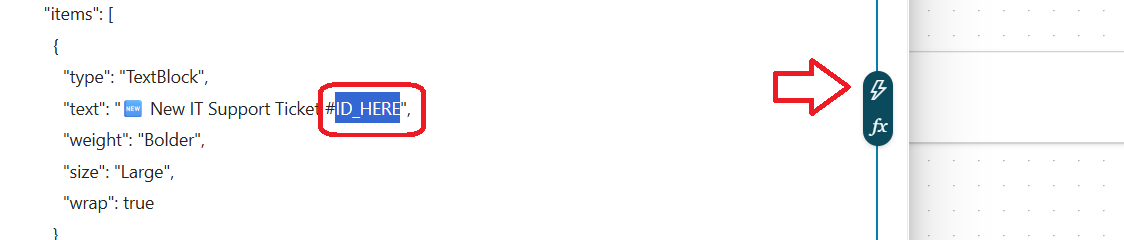
Result should look like:
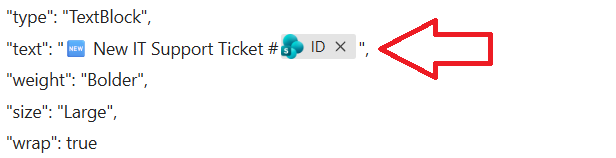
5. Perform the same task for the other placeholders
| Placeholder | Replace with ⚡ |
|---|---|
ID_HERE | ID |
TITLE_HERE | IssueTitle |
EMAIL_HERE | UserEmail |
CATEGORY_HERE | Category |
PRIORITY_HERE | Priority |
DESCRIPTION_HERE | IssueDescription |
STEPS_HERE | StepsTried |
LINK_HERE | Link to item (use the search box if unable to locate Link to item) This will send the IT team a direct link when posting a message in the Teams channel. |
Note: Be careful not to delete the quotation marks " " around each placeholder. If one goes missing, the card won’t post.
If a user types quotation marks (") in their issue description, the card can fail to post. If this happens during testing, rephrase the test issue without quotes. For a permanent fix, ask the agent (in Step 3) to avoid using quotation marks in ticket fields.
5d. Send the ticket number back to the agent
- Click the Respond to the agent action at the bottom of the flow. If it isn’t there, add it with +.
- Select + Add an output > Text.
- Name it TicketID, and for the value select ⚡ ID
5e. Save and publish the flow
- Select Save draft (top right).
- Select Publish.
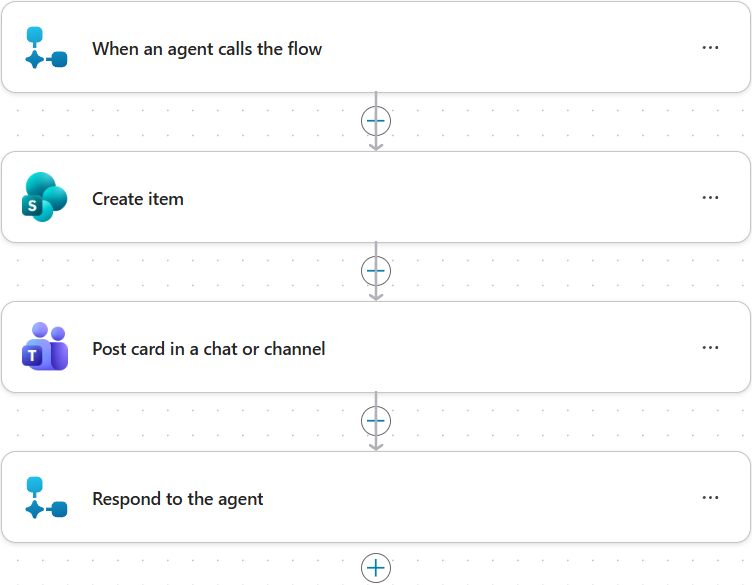
Your flow should read, from top to bottom: When an agent calls the flow > Create item > Post card in a chat or channel > Respond to the agent.
Step 6: Test the flow by clicking Test
- Click Test

2. Enter some dummy data and click Run flow

3. Result – SharePoint list updated

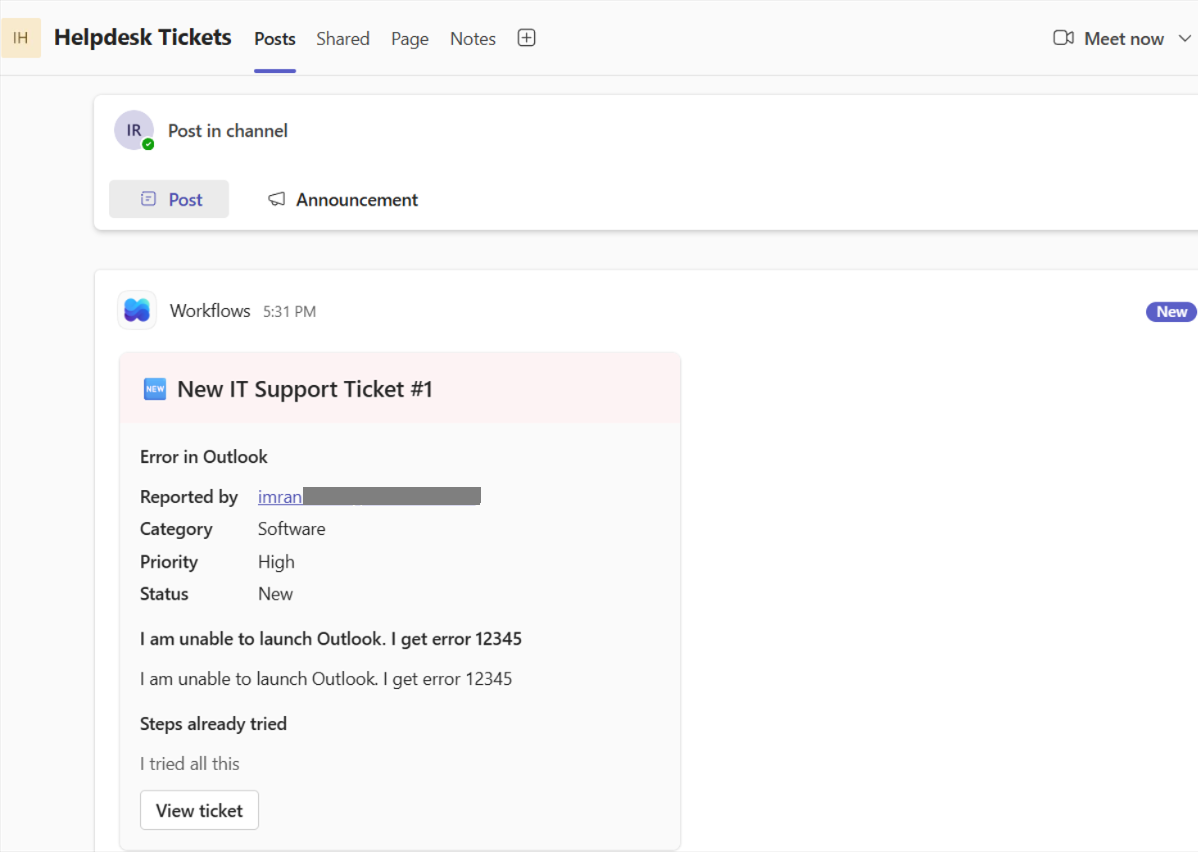
4. Result – Message posted in Teams
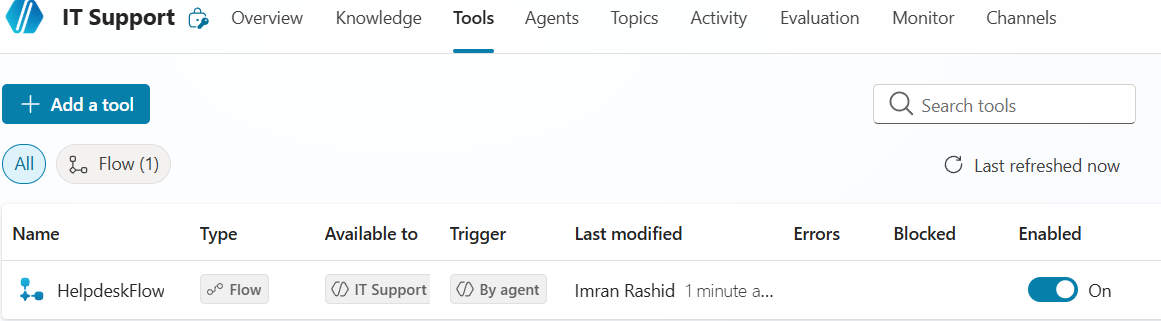
5. Back to your agent in Copilot Studio, click Tools and add the workflow you just created. Give the workflow a description of The agent runs this flow when a user wants to log a ticket with helpdesk, and then click save.
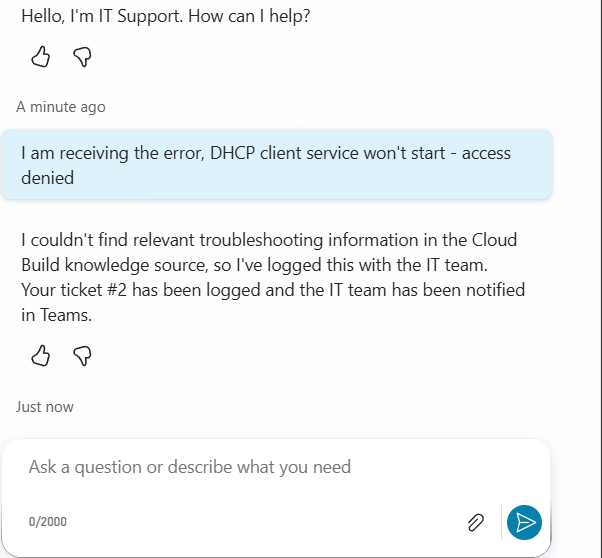
6. Now, let’s test via the agent. Open the test pane of the agent in Copilot Studio
I’ll post the following message
“I am receiving the error, DHCP client service won’t start – access denied”
The agent is unable to locate the information, so logs a ticket automatically and provides a ticket reference number.
7. A new record is added to the SharePoint list

8. and sends a message to the IT Helpdesk Teams channel

9. If I ask the agent to help me log a ticket with IT, the agent asks me for further details as instructed and then logs a ticket, as shown in the image below.

I hope you found this post useful. Thanks for reading and see you at the next one.

