
Microsoft has announced some exciting changes to Copilot, introducing three new capabilities called Home, Code and Autopilot. In this blog post, I will discuss each one including additional topics such as Office, Today, Cost and Governance. These changes will gradually be rolled out so may not be available at the time of writing this post.
At first glance, those names don’t tell us very much. So here’s a quick summary before we dive into each feature in more detail:
Home is your new starting point in Copilot, bringing Chat and Cowork together in one place. Office in Copilot also brings Word, Excel and PowerPoint directly into the experience.
Code is where you build. Describe an app, tracker, dashboard, automation or workflow in natural language and Copilot can build it for you. You do not need to be a professional developer.
Autopilot (previously known as Scout) is where you delegate ongoing work. It’s a digital colleague designed to continue working towards a goal without waiting for you to provide another prompt. It’s an agent which runs in the background in the cloud, so it’s not disrupted when your machine is shut down.
And eventually, Microsoft says you won’t necessarily have to decide which one to use. You’ll describe what you want to accomplish and Copilot will be able to route the work to Chat, Cowork or Code depending on what’s appropriate.
In this blog post I will explain the new features in further detail.
Let’s get started.
If you have used Copilot so far, you will know that it is a clever assistant you chat with. Well, it is growing from something you ask questions to, into something that can start where you left off, build small applications for you, and keep working on your behalf in the background whilst you work on other tasks or whilst you are asleep. Think of it like a helpful colleague who has just been given a desk, a to do list and the keys to the office, rather than someone you can only phone up for a quick answer.
Think of the difference this way.
Previously, you might ask Copilot:
“Summarise this document for me.”
Now we’re moving towards being able to say:
“Complete this piece of work for me.”
“Build me a tool to help me do this.”
“Continue to look after this process for me.”
Let’s dig deeper
Home: Your Starting Point for Copilot
Let’s start with Home as shown in the image below, because this is where Microsoft wants your Copilot experience to come together.
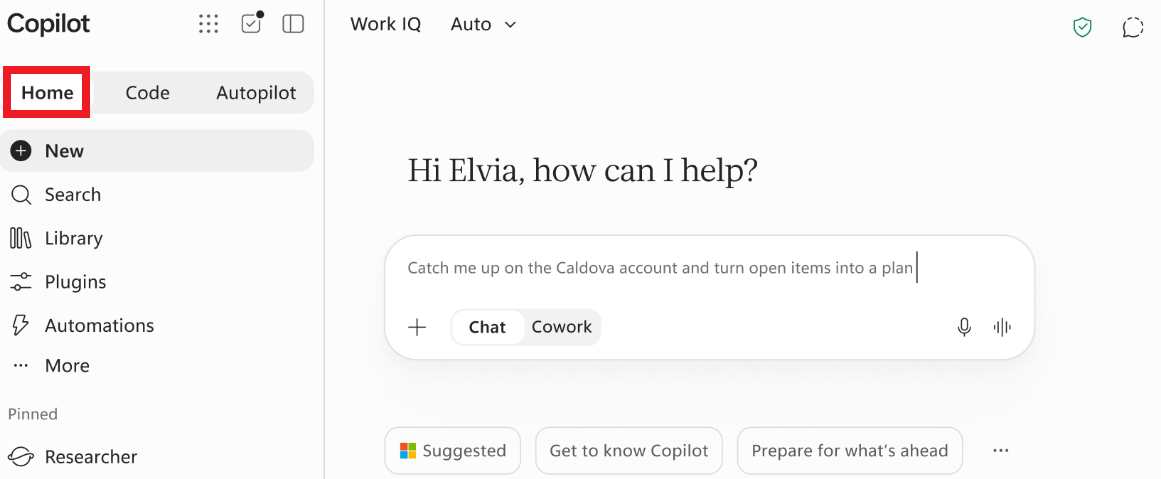
Home brings Chat and Cowork into one place. At the moment, these exist as separate tabs and you have to switch between them, as shown in the image below.
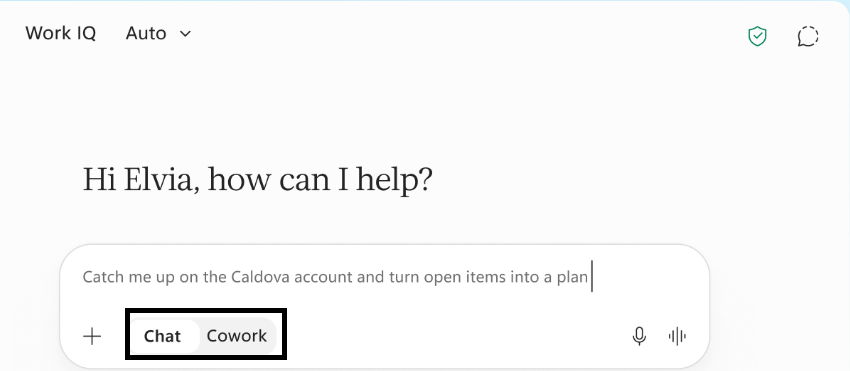
The problem with this is that users are not sure which one to use, whereas with the new version of Copilot, Microsoft’s aim for the future is to allow Copilot to work out which one to switch to, based on what the user asks Copilot, and without users having to figure it out themselves. Cowork uses usage based billing and consumes Copilot Credits. Access and spending can be controlled by your organisation’s administrators through spending policies. I’ll cover licensing/costs later in this blog post.
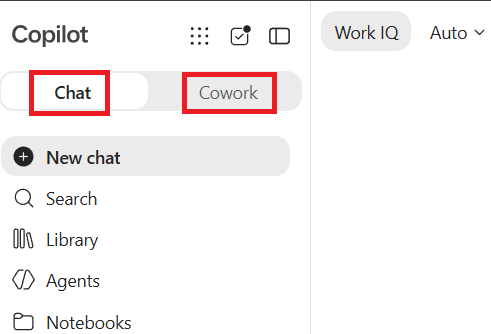
What is the difference between Chat and Cowork?
Chat is for something you want now. You ask a question and Copilot responds.
For example:
“Summarise the key points from this document.”
“Help me write an email.”
“What have I missed while I’ve been away?”
Microsoft describes Chat as the conversational experience for things such as quick questions, lookups and creating drafts.
Cowork is different and is used for something you want done. Rather than having a conversation with Copilot one prompt at a time, you can delegate a larger task and have it work through that task end to end with less step by step involvement from you. However, you are able to instruct Cowork to check with you before triggering tasks. Microsoft gives examples including creating an RFP response, launch kit, customer briefing and financial close package.
Here is how I think about the differences:
Chat is a conversation between you and Copilot where you are driving the conversation, such as “Summarise this file”, “what are the outstanding tasks that I need to be aware of”, “draft me an email that I can send my manager”
Cowork is used for delegation instead of going backwards and forwards in a conversation, for example, “Take care of this task for me”, whilst you work on other stuff, allowing Cowork to work out what it needs to do itself for a long running task. Cowork processes your task and provides you with an end result with less ongoing input from you.
The image below shows what the combined new experience will look like once it is rolled out. A reminder that Cowork will not automatically launch and start costing your organisation if it has not been enabled for all or selected users. Your Microsoft 365 Copilot subscription continues to cover everyday Copilot experiences, such as Copilot Chat and Copilot in Word, PowerPoint, Outlook, Teams and Excel, while advanced experiences such as Cowork use Usage-Based Billing and consume Copilot Credits when enabled by your organisation.
Office is coming into Copilot too
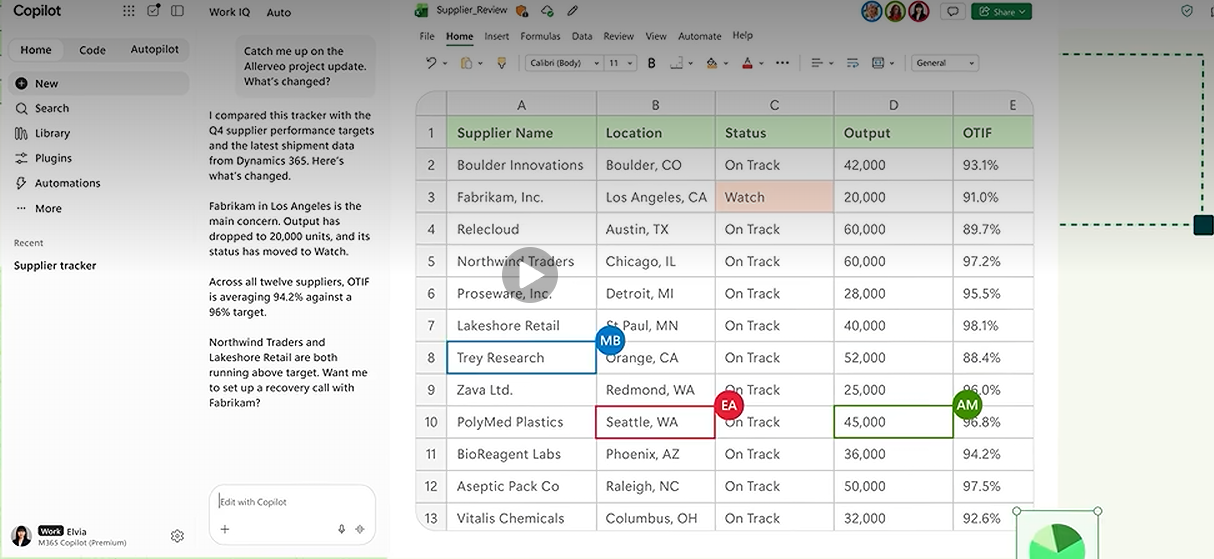
There’s another important change inside Home. With Office in Copilot, the full power of Word, Excel and PowerPoint is being built into the Copilot Chat experience.
From Home you can ask Copilot to draft a launch brief, model a budget, build a deck, or pick up a file your team is already working on, and it creates or updates a real, editable document, workbook or presentation, live for your whole team, not just you. Refine it side by side with your conversation, or @mention a teammate and their edits show up as they make them. Things stay in sync between Copilot and the Office apps, so progress travels with you wherever you work.
Code: No need to be a professional developer
This new addition allows you to describe what you need in natural language, and Copilot works out how to build a solution from your description. For example, you can attach a spreadsheet and ask Copilot to develop a live app for you which you could share with your team.
Powered by the same underlying technology as GitHub Copilot, Code runs in a sandboxed environment and can be hosted securely within your tenant. Microsoft says software developers will continue to use GitHub Copilot for their day to day work, with more connectivity into the Copilot platform. Code is about making smaller, purpose built solutions accessible to a much broader group of people.
Microsoft says Code can create things including:
- apps
- trackers
- dashboards
- automations
- workflows
- desktop widgets
- cloud hosted internal applications.
Example,
“Build me a simple dashboard where I can track training courses, number of attendees and satisfaction scores.”
Autopilot: Give Copilot an Ongoing Job
Autopilot is probably the biggest conceptual change of the three.
Instead of thinking about:
“What do I want Copilot to do right now?”
start thinking:
“What responsibility could I hand over to Copilot?”
Until now, most of us have interacted with AI by asking it for something. You type a prompt. AI responds. You give it another task. AI responds again. Autopilot changes that relationship.
Autopilot, previously called Scout, is a new type of AI agent in Microsoft Copilot. Microsoft describes it as a persistent, proactive and personal agent that can keep working even when you’re not actively using Copilot. A simple way to think about it is as a digital colleague that can be given an ongoing responsibility.
How does Autopilot work?
Instead of giving Autopilot just one prompt, you can give it a name, a role and a goal. It can then continue working towards that goal without waiting for you to provide another prompt every time. For example, you could have an Autopilot whose role is to help you stay on top of important work.
Microsoft says Autopilots can stay active in the background and take action without needing to be prompted each time. Microsoft’s example for Scout, now Autopilot, include coordinating meeting times, identifying upcoming deliverables, preparing materials and spotting stalled decisions.
It is also cloud hosted, which means it can keep working while your attention is elsewhere, rather than requiring you to sit at your computer watching it complete its work. Whereas Scout was a desktop application that needed to be installed on your device, Autopilot is cloud hosted, meaning it can continue working even when you’re not at your computer.
Let’s look at a simple Autopilot example
Imagine you work in sales and you’ve been speaking with a customer about a potential deal. You’ve exchanged emails, held meetings and discussed what they need. But you’ve become busy with other work and haven’t contacted the customer for some time. An Autopilot created to help you manage this type of work could potentially recognise that the work needs attention and recommend a next step, such as arranging another meeting with the customer. You could then review its recommendation and, where approval is required, respond with:
“Yes, go ahead and set up a meeting invite between me and the client.”
The important point is that you aren’t relying entirely on yourself to remember that something needs attention. Autopilot is designed to keep working towards the ongoing goal you’ve given it.
Furthermore, Autopilot has its own identity. This is where the idea of a digital colleague becomes interesting. Microsoft says Autopilot has its own identity, memory, computer and workspace within your organisation’s Microsoft 365 environment. Microsoft also says it can appear where people already work, including Teams, Outlook, chats, channels and documents, and you can @mention it like a colleague if you wish to communicate with it in much the same way you might bring a colleague into a conversation.
The key idea is that Autopilot isn’t just something you ask questions of. It’s an AI agent that can be given an ongoing job to do and continue monitoring that work, rather than completing one task and stopping until it receives further instructions.
What can Autopilot access?
Having an AI agent continuously working for you naturally raises an important question: what can it access? Autopilot doesn’t simply get unrestricted access to everything in your organisation. Microsoft says Autopilot has its own identity and operates within the permissions and policies set by you and your organisation. You can think of this in a similar way to a human colleague: they have their own identity and are given the appropriate permissions and access they need to do their job, rather than having unrestricted access to everything.
What is the difference between Cowork and Autopilot?
At first, it seems that Cowork and Autopilot are the same. Both involve delegating work to AI, but there is an important difference. With Cowork, you give Copilot a piece of work you want completing. For example:
“Create a customer briefing for my meeting tomorrow.”
Cowork can work through the steps required to complete the task and provide you with the result. Microsoft describes Cowork as being for work you delegate. You define the task and Cowork works end to end to return a completed result. A simple way to remember it is: You give Cowork a task, Cowork works on it and Cowork completes the task.
Autopilot is designed differently. Rather than only giving it an individual task, you can give it a role and an ongoing goal. It can remain active in the background and continue working without waiting for you to prompt it every time. Microsoft describes Autopilots as always on agents. You give Autopilot a role and goal, and then Autopilot continues working towards that goal.
An easy way to remember the difference is, that Cowork is work you delegate. Autopilot is an ongoing responsibility you delegate. Let’s take another example, imagine you had two digital colleagues. You ask the first colleague: “Please prepare a customer briefing for my meeting tomorrow.” This is like Cowork. There is a particular piece of work to complete. Once that work is finished, the task is complete.
Now imagine telling the second colleague: “Help me stay on top of important customer relationships and make sure important work doesn’t get forgotten.” That’s more like Autopilot. You haven’t simply given it one task. You’ve given it an ongoing responsibility.
Does Autopilot keep working when I’m not using Copilot?
Yes. That’s one of the ideas that makes Autopilot different. Microsoft describes Autopilot as cloud hosted, meaning it can continue working while you sleep or while your attention is elsewhere. You don’t need to keep Copilot open and watch it work. This is why describing Autopilot as always on makes sense. It can remain active in the background instead of waiting for you to start every interaction.
When Microsoft announced the new Copilot experience on 25 September 2026, it said that Autopilot was expanding to private preview at the end of the month, so don’t be surprised if you currently open Microsoft Copilot and can’t find Autopilot. As with preview technology, availability and capabilities may change as Microsoft develops the experience further.
Why is Autopilot such an interesting development?
For years, we’ve mainly thought about AI as something that waits for us. We ask and AI answers. Autopilot introduces another way of thinking about AI at work. Instead of asking: “What can AI do for me right now?” we can start asking: “What ongoing responsibilities could I give to a digital colleague?” That may sound like a small difference, but it’s actually a massive shift.
For someone completely new to these concepts, the below points are probably the easiest way to remember it:
Chat: Ask me something.
Cowork: Give me a task to complete.
Autopilot: Give me an ongoing responsibility.
New feature: Today
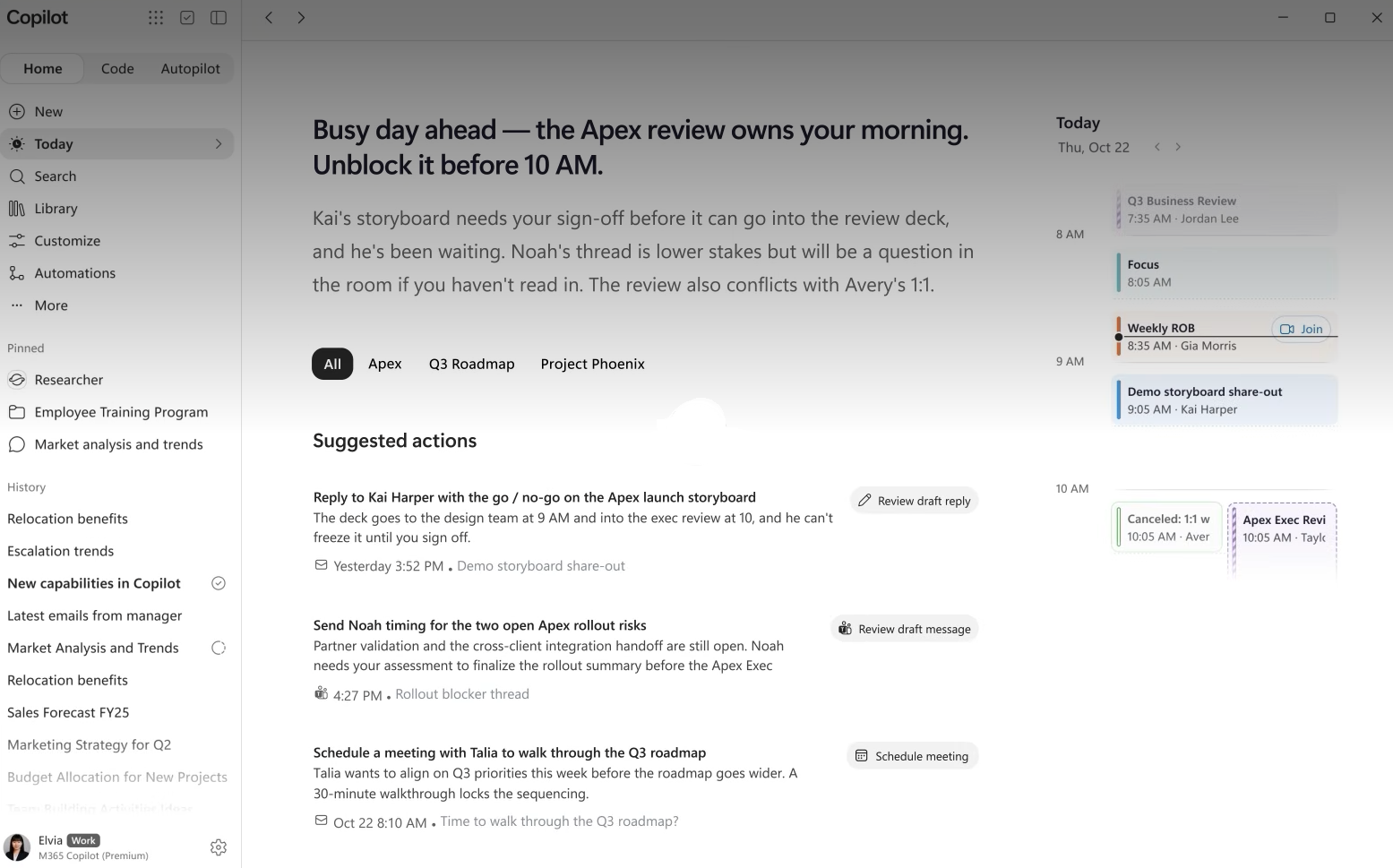
The Today feature will bring together information across your mail, calendar, Teams threads, meetings and tasks, providing a personalised view of what you missed, what needs your attention now and what can wait in one place This will help massively as you won’t need to run or schedule a prompt to work out what’s outstanding for the day.
Check out the official Microsoft video at the following link: Today
How much do Cowork, Code and Autopilot cost?
Microsoft uses two different approaches to pay for Copilot usage, a User Subscription Licence (USL) and Usage Based Billing (UBB). I’ll break both of these down.
User Subscription Licence (USL)
A user subscription licence (USL) provides the fixed price AI foundation for everyday Copilot usage. This includes Copilot Chat and Copilot experiences across Microsoft 365 apps such as Word, Excel, PowerPoint, Outlook and Teams. You can use Copilot for everyday productivity tasks such as summarising meetings, drafting content and analysing information. Think of this as your regular Copilot subscription for everyday AI work.
However, some of Microsoft’s newer AI capabilities can take on longer running and more complex work. This is where Usage based billing comes in.
Usage Based Billing (UBB)
Usage based billing (UBB) is used for more advanced AI work where the cost is based on actual usage. Microsoft specifically identifies Cowork, Code and Autopilot as experiences that use usage based billing. These experiences require a user subscription licence for access, and consume additional Copilot credits when used. The easiest way to understand the difference is this, a user subscription licence (USL) is your fixed price subscription for everyday Copilot experiences, whereas usage based billing (UBB) is your additional usage for advanced AI experiences such as Cowork, Code and Autopilot, measured using Copilot Credits.
What are Copilot Credits?
Copilot Credits are Microsoft’s common way of measuring usage across eligible services that use usage based billing. So, having a Microsoft 365 Copilot subscription doesn’t mean that every advanced AI workload is necessarily covered by the fixed subscription price. For Cowork, Code and Autopilot, your user subscription licence provides access, while your use of these advanced capabilities consumes Copilot credits. Organisations can obtain Copilot credits through different purchasing options, including, pay as you go billing or prepaid capacity, depending on the service.
Can organisations control the cost?
The idea of usage-Based Billing may immediately raise a concern, such as, if people start using Cowork, Code and Autopilot, could an organisation suddenly receive an unexpected bill? Administrators can use spending policies in the Microsoft 365 admin centre to control access and Copilot Credit spending. These policies can be applied at the organisation, group or user level, allowing different spending controls to be applied to different people or groups. Microsoft provides cost management capabilities that allow administrators to monitor Copilot credit consumption, govern access, configure budget alerts, establish spending controls and manage credit requests. Microsoft is also introducing FinOps for AI to help organisations manage AI spending and understand the value they’re getting from Copilot and agents.
Can users see how many Copilot Credits they’re using?
Yes, in supported experiences.
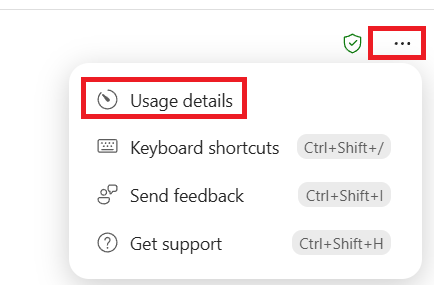
For Cowork, Microsoft says users can enter /cost to see the approximate Copilot Credit usage for the task they currently have open and how many credits they have remaining for the month. Microsoft has also recently introduced the Usage details option as shown below.
Administrators have a much broader view through the Cost Management dashboard in the Microsoft 365 admin centre, where they can see total consumption, users consuming credits, spending policies, usage across supported agents and services, and identify users or policies approaching their limits.
What about governance and security?
As AI makes it easier for people to create their own apps and agents, organisations are concerned about governance and security. In the past, building a business application often required specialist technical skills and support from a development or IT team. With experiences such as Copilot Cowork, Copilot Code, Agent builder and Microsoft Copilot Studio, more people can create agents and apps using natural language if IT has granted permissions. This is powerful, but it raises an important question:
What happens when lots of people across an organisation start creating their own apps and agents?
IT teams cannot supervise every employee while they create an app. Instead, organisations need governance that works at scale, giving people room to innovate while maintaining appropriate controls over security, data and access. To help organisations govern the growing number of apps created through different tools, Microsoft has introduced Microsoft Copilot Managed Runtime.
What is Microsoft Copilot Managed Runtime?
Announced in September 2026 and currently in public preview, Copilot Managed Runtime provides a Microsoft hosted environment for running Microsoft 365 business applications while applying organisational governance, security and compliance controls.
Microsoft says it already powers apps created through Copilot Cowork, Copilot Code and Microsoft Copilot Studio. It is also available to professional developers and third party development tools.
Copilot Managed Runtime also integrates with Work IQ and connectors. Work IQ is Microsoft’s intelligence layer for work, helping Copilot understand organisational data and context so that apps and AI experiences can work with relevant business information, while access remains governed by the organisation. A simple way to understand it is this, Copilot makes it easier for people to build apps. Microsoft Copilot Managed Runtime provides a managed and governed environment in which those apps can run.
Microsoft says applications hosted by Copilot Managed Runtime automatically inherit organisational governance, security and compliance controls from the moment they are created. This gives different groups across the organisation a shared environment where:
- Users can discover and use apps available to them.
- Makers and developers can build apps using different creation experiences.
- Administrators can govern apps across the organisation.
I hope you found this post useful. Thanks for reading.

