In this blog post, I’ll explore Copilot pages, a feature available to organisations using Microsoft 365 Copilot and Microsoft 365 Copilot Chat. If you’d like to learn more about these tools, check out my earlier post at the following link, Microsoft 365 Copilot Chat and Microsoft 365 Copilot Explained.
Note: A SharePoint license is required for Copilot Pages to function. While Copilot Pages are powered by Microsoft Loop, they are stored in SharePoint Embedded user-owned containers, not directly within the Loop app.
Copilot Pages in Microsoft 365 are dynamic, collaborative workspaces powered by Microsoft Loop. They’re designed to help you transform Copilot generated responses into living documents that you can build on, either individually or with your team in real time.
Imagine you’re planning a 3 day team event in London for 20 people. You input the following prompt in Microsoft 365 Copilot:
“Please create a detailed 3-day team event itinerary in London for 20 people. The plan should include: – Hotel recommendations with good value for money (mid-range pricing, central location preferred). – Estimated daily food costs (breakfast, lunch, and dinner). – Fun and engaging group activities, such as bowling, escape rooms, or interactive games. – Transportation considerations between venues if needed. – The goal is to balance fun, convenience, and cost-effectiveness.”
Copilot generates a detailed plan, but you can’t make changes to the response directly. Instead, you need to copy the output and paste it into a document,
With Copilot Pages, you can turn a Copilot generated response into an editable, collaborative page. From there, you can invite colleagues to collaborate in real time, manually updating hotel options, refining the schedule, and tracking costs together, all in one place.
Copilot Pages make it easy to stay organised, enabling you to co-create content that evolves with your project. As your colleagues help update the plan, you can continue asking Copilot for additional information and add it to the existing page with a click.
In this post, I’ll take you through a step by step demo of Copilot Pages. Let’s get started.
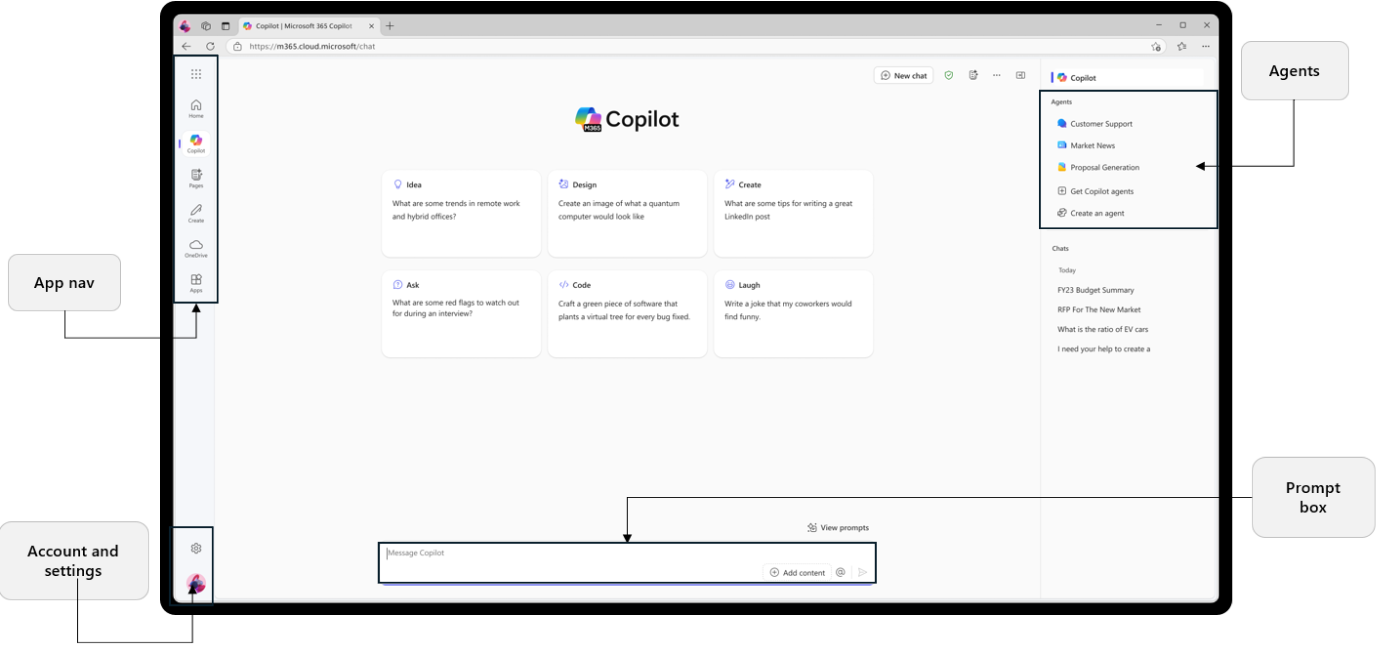
Go to https://copilot.cloud.microsoft and sign in using your Entra ID (work email address). You also access Copilot Chat directly from within Microsoft Teams or Outlook. As of May 2025, Copilot Chat is pinned by default to the navigation bar in these apps for most eligible users. For more details on accessing Copilot Chat, refer to my blog post I linked at the start of this article.
I enter the following prompt into Copilot:
Please create a detailed 3-day team event itinerary in London for 20 people. The plan should include: – Hotel recommendations with good value for money (mid-range pricing, central location preferred). – Estimated daily food costs (breakfast, lunch, and dinner). – Fun and engaging group activities, such as bowling, escape rooms, or interactive games. – Transportation considerations between venues if needed. – The goal is to balance fun, convenience, and cost-effectiveness.
Here is the response generated by Copilot:
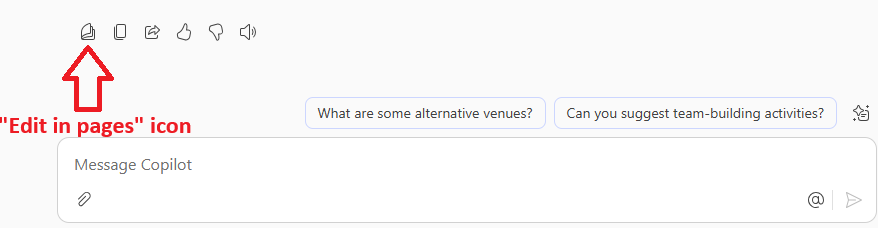
2. I have the option to copy the response by clicking the copy button, or I can choose the option to edit in Pages, as shown in the image below. Let’s click Edit in Pages to continue.
3. After I click on Edit in Pages, the response is transferred into an editable Copilot page on the right-hand side of my screen. I can continue interacting with Copilot on the left, as shown in the image below.
Another image is shown below, displaying only the editable Copilot page.
4. I can now make changes to this document, such as removing, adding, or moving data. The Copilot response is now fully editable, thanks to Copilot pages. I can also add additional elements such as a table, a numbered or bullet list, a checklist, and more.
As shown in the image below, I can remove text, add headings, format the text, and more.
5. I can also continue chatting with Copilot and add the additional response into the existing Copilot Page with a click of a button.
I’ll add another prompt as follows: Create a list of three well known places we can visit near city centre, including information on how to get there via public transport.
Below is the response from Copilot.
I can click Add to page, and from the drop down menu, select Add to recent page. As per the image below:
The response has now been added to the existing Copilot page.
Furthermore, I can ask Copilot to create a table of actions we need to carry out before the team event. This table can also be included in the existing Copilot Page.
I input another prompt as follows:
“Create a table of actions we need to progress to before the Team get together. Include a column for Assigned to, Priority, Status”
Again, I’ll click the button Edit in Pages and add the table to my existing Copilot page, allowing me to make additional changes, including adding new columns if needed, as shown in the image below.
Assigning members to the tasks
Now that I have added the table created by Copilot into my Copilot page. I may want to invite team members to join me in working on the page.
Using the @ symbol, I can mention and invite colleagues to collaborate on the document in sync and in real time. Both myself and my colleagues can work on the document and see the changes being made. The colleagues I invite will receive a notification letting them know they’ve been invited to collaborate, and they can start working on the page straight away.
My colleague will receive an email notification, as shown in the image below:
But what if I want to share this page with my wider team, or include the document in an email with the option for team members to make changes directly from the email? Is this possible? Yes!
In the top right corner of your Copilot Page, there is a share icon. This allows you to share the page with others so they can collaborate. The icon just to the left of it lets you export the document to Microsoft Word, if needed.
When clicking the share icon, as shown in the image below, two options appear.
Page link: This option allows me to copy the link to the Copilot Page and control permissions via the settings link. I can decide who is allowed to access my Copilot Page. By default, anyone in my organisation can edit the page.
I can share the link with my colleagues, and they’ll be able to access the Copilot Page, which is located inside Microsoft Loop. Copilot Pages is powered by the Microsoft Loop application. While the experience is powered by the Microsoft Loop application, the content itself is stored in SharePoint Embedded containers within Microsoft 365.
Permissions can be changed by clicking settings.
When a colleague opens the link I share, the Copilot Page is visible, as shown in the image below.
Copy Component This option allows me to copy a live component from my Copilot Page and share it in other Microsoft 365 apps, such as Outlook or Teams. I can set permissions as needed, and thanks to Microsoft Loop, the component remains live and editable.
For example, I can paste the component into an email to my team. They’ll be able to edit the content directly from the email, and any changes made will sync in real time with the original Copilot Page.
As shown in the image below, my Copilot Page has been embedded as a Loop component in an email. Any updates made here will reflect instantly in the central Copilot Page. This is the power of the component option.
How can I revisit previous Copilot Pages if I close down Copilot?
You can continue working on your page by opening the Microsoft Loop app, where your Copilot Pages are accessible.
I hope you found this post useful. Catch you in the next one.
In this post, we’ll explore the key differences between Microsoft 365 Copilot and Microsoft 365 Copilot Chat. At first glance, the only distinction might seem to be the word “Chat”, but that small difference represents two distinct user experiences and capabilities. So grab a drink, buckle up, and let’s dive into what sets them apart.
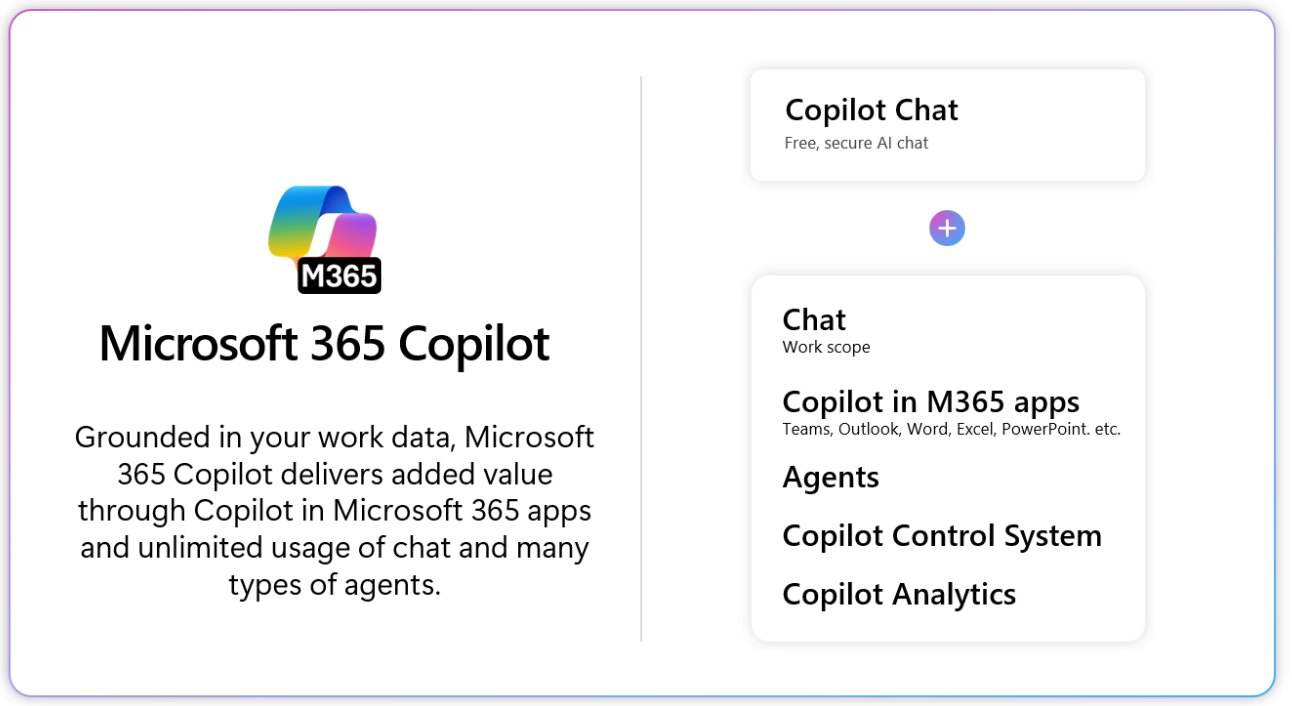
Setting the stage Before we dive in, I want to set the stage. Microsoft 365 Copilot Chat isn’t the premium version, but it offers a great way for organisations to explore AI with minimal cost. As confidence and value grow, organisations may gradually scale up to Microsoft 365 Copilot, the fully integrated premium experience at $30/user/month which includes Copilot Chat and additional capabilities as shown in the image below. We’ll explore the capabilities later in this post.
In this post, I’ll be referring to three important terms including, web-grounded, work-grounded and Microsoft Graph.
Web-grounded means Copilot only uses data from the public web data (via Bing) and does not access your work data.
Work-grounded means Copilot can access your work data, such as files, emails, meetings, and more, through the Microsoft Graph, based on what you as a user are authorised to view.
Microsoft Graph is the API (Application Programming Interface) that connects data across Microsoft 365 services, like Outlook, Teams, SharePoint, and OneDrive, allowing Copilot to securely access and reason over your work content based on your existing permissions. Copilot can only access the data which you already have permissions to access.
Microsoft 365 Copilot Chat
Microsoft made Microsoft 365 Copilot Chat available to a broader range of organisations already using Microsoft 365 services, even if they haven’t purchased the full Microsoft 365 Copilot licence. Previously, Copilot Chat was only accessible to businesses that paid for the additional Copilot licence.
As of 2025, Copilot Chat is now included at no extra cost for organisations with eligible Microsoft 365 licenses, such as Microsoft 365 E3, E5, Business Standard, Business Premium, and others. This means that if your organisation is already licensed for apps like Word, Teams, Outlook, Excel, PowerPoint, and SharePoint, you likely have access to Copilot Chat.
Copilot Chat is not free for all
It’s important to clarify a common misconception: Copilot Chat is NOT free for everyone. It’s included only for users with qualifying Microsoft 365 or Office 365 licenses. I’ll go into more detail on the specific license types later in this post.
Why this blog post?
Because while Microsoft 365 Copilot and Microsoft 365 Copilot Chat may sound similar, there are differences between the two offerings. Understanding those differences is key to using them effectively, and that’s exactly what I’ll be focusing on in this post.
January 2025: Copilot Chat Becomes More Accessible
In January 2025, Microsoft announced the broader availability of Microsoft 365 Copilot Chat, introducing it as a new offering for commercial customers. This update included support for pay as you go agents, allowing organisations to access advanced AI capabilities without committing to a full Copilot license. More on this later.
Importantly, while Microsoft 365 Copilot Chat is now included as part of a range of existing Microsoft 365 licenses, as mentioned above, it is not free for everyone. Only users with eligible Microsoft 365 commercial licenses can access it. Some advanced features, such as agents that access tenant data, will incur additional costs under a metered billing model.
A Secure, Scalable AI Experience
Microsoft 365 Copilot Chat delivers a secure AI chat experience powered by GPT-4o, designed to be accessible across organisations without requiring a separate Copilot license. This is a major shift from the previous model as it makes it easier for businesses to explore AI capabilities without upfront investment in premium Copilot subscriptions.
The good news is that organisations can now gradually scale their adoption, starting with Microsoft 365Copilot Chat and transitioning to the full Microsoft 365 Copilot experience as their needs evolve.
In short, Copilot Chat is included at no additional cost for users with eligible Microsoft 365 licenses. However, it’s worth repeating, this doesn’t mean it’s free for everyone. It’s only available to organisations already licensed for Microsoft 365 services.
This inclusion is a great opportunity for businesses that want to explore Copilot’s capabilities but aren’t yet ready to commit to the full premium version. It allows organisations to experiment, evaluate, and build confidence before scaling up to the premium version, known as Microsoft 365 Copilot.
Who has access to Microsoft 365 Copilot Chat?
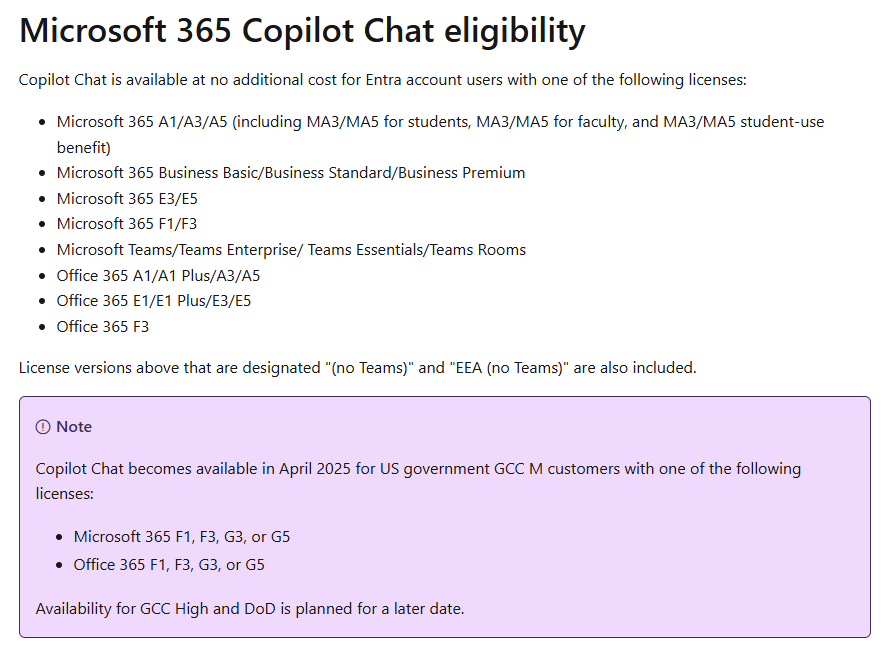
Copilot Chat is available at no additional cost for Microsoft Entra account users with one of the following eligible licenses. The screen shot below was taken from the Microsoft website and lists which 365 licenses include Microsoft 365 Copilot Chat as of January 2025.
Microsoft 365 Copilot Chat empowers organisations to adopt AI in the workplace without the upfront cost of licenses. It provides a secure, web-grounded AI chat experience powered by GPT-4o, enabling users to access real-time information from the internet and interact with organisational data, with the confidence that enterprise-grade security, privacy, and compliance are built in by design.
You can use Microsoft Copilot Chat to:
Upload Files Users can upload files directly into the chat and ask Copilot to assist with content, analysis, or formatting, making it a powerful productivity tool. You can upload your organisation files, such as a word document and ask Copilot to do things like summarise key points, analyse data in an Excel spreadsheet, and suggest improvements to a PowerPoint presentation.
Copilot Pages Copilot Pages is a collaborative workspace where you can co-create content with both AI and your colleagues in real time. You can bring together content from Copilot, your files, and even the web, all in one place. For example, you might ask Copilot to draft a plan for a team event. That content can be added directly to a Copilot Page with the click of your mouse, where your team can edit, refine, and build on it together in real time. No more emailing documents back and forth or managing multiple versions. Everyone works from the same page. You can learn more about Copilot pages in the following blog post I created: Microsoft 365 Copilot Pages – Step by Step Demo – Cloud Build
Note: Copilot Pages is available in both Microsoft 365 Copilot and Copilot Chat at no additional cost but requires a SharePoint license, as it powers the underlying collaboration and storage features.
Security Microsoft 365 Copilot Chat includes robust enterprise grade security, privacy, and compliance controls. It’s built on Microsoft’s trusted cloud infrastructure and adheres to the same security and compliance commitments as the rest of the Microsoft 365 suite.
Agents Agents are integrated into the chat experience, but not all agents are available for free. Microsoft 365 Copilot Chat has agents that can be used at no additional cost, and agents that are billed based on metered consumption. Agents that are grounded in instructions and public websites are available at no additional cost. If you wish to configure an agent which is grounded in your enterprise data or third party, this is a paid for service based on you setting up an agent as part of a message pack or pay as you go basis. For example, you may wish to create an agent which links to your CRM system which can then be utlised to retrieve information without you having to login to your CRM system. AI agents were previously available in the full Microsoft 365 Copilot experience only, requiring a $30 per user per month license.
I have created a comparison of agent availability in the table below.
Agent Type
Available in Copilot Chat
Available in Microsoft 365 Copilot ($30 license)
Declarative Agents Grounded in public data or instructions
✅ Included (Grounded in web data)
✅ Included (Grounded in web data)
Metered Agents Agents that access enterprise data like SharePoint or CRM
✅ Available 💵 Paid (Metered)
✅ Available 💵 Included in license
Autonomous Agents AI Agents that perform multi step tasks automatically without user prompts.
✅ Available 💵 Paid (Metered)
✅ Available 💵 Paid (Metered)
Managing Costs with Metered Agents
A common concern with AI adoption and Microsoft 365 Copilot Chat is: how do we prevent pay-as-you-go costs from spiraling out of control? If you’re wanting to try out agents with Microsoft 365 Copilot Chat but nervous about the costs, Microsoft offers two billing options to help organisations manage usage and stay within budget:
Pay-as-you-go: An open billing model where you’re charged $0.01 per message.
Message/Consumption Packs: A fixed monthly plan offering 25,000 messages for $200 per tenant. You can also pay annually.
Organisations may also use a combination of multiple message packs and pay-as-you-go combined as a failsafe, incase they run out of messages.
These options are configured through the Copilot Studio portal, where IT admins can monitor usage and set limits. Let’s explore further.
IT Controls and Agent Access
To maintain control and security:
Declarative agents (grounded in public data or instructions) are enabled by default and can be used/created for free by your users in Copilot Chat. There are also a number of built in agents grounded in the web which can be utilised out of the box.
Metered agents (e.g. those accessing SharePoint or Graph Connector content) are disabled by default and must be explicitly enabled by IT admins via Copilot Studio.
In Microsoft 365 Copilot ($30 per user license), agent capabilities are enabled by default and included as part of the package (apart from autonomous agents), but admins can still control which agents are available to users.
The Microsoft 365 Copilot Chat usage dashboard provides insights into active usage of Microsoft 365 Copilot Chat. The report includes total active users, average daily active users, and active users per app. Usage insights can be viewed as totals and trends for the past 7, 30, 90, or 180-day periods. The report also shows the last activity date per user, anonymised by default. To view all reports, check out Microsoft 365 Reports in the admin center overview.
Note At the time of writing, the report is currently limited to users without a Microsoft 365 Copilot license that interact with Copilot Chat in Teams, Outlook, Copilot.cloud.microsoft, Microsoft 365 Copilot (app), and Microsoft Edge. Source: Microsoft 365 Copilot Chat usage
How do I accessMicrosoft 365 Copilot Chat and Microsoft 365 Copilot?
In the table below, I have included some details about the personal free version in column three, as this version causes confusion. The personal version is available to all. I have provided some information on the personal version towards the end of this post but the main focus is the two business versions of Copilot in columns one and two.
✅ Work from one place: gather chats, files, meeting notes, and more; ask questions; get insights; and draft new content. Can also create a podcast style audio overview of your content with two hosts that walk you through key points. More info
Copilot memory and personalisation. Images below (6)
✅
✅ Learns and stores your information from your conversations and from your work profile into Copilot memory. For example, I enjoy travelling to Spain, I have a cat named Garfield and so on. Copilot can use this detail when interacting with you. Data can be deleted.
(1) Code Interpreter in Microsoft 365 Copilot uses the Python programming language to help users perform advanced data analysis, including coding, visualization, and mathematical calculations.
(2) SharePoint Advanced Management (SAM) SharePoint Advanced Management is a Microsoft 365 add-on that helps organisations prepare for Copilot by improving content governance, reducing oversharing, managing content sprawl, and ensuring Copilot accesses only accurate, well-managed data. Beginning in early 2025, it is included with the paid Microsoft 365 Copilot license. More info at: SharePoint Advanced Management (SAM)
(3) Microsoft 365 Copilot Chat pinned To ensure people across your organisation have easy access to Copilot Chat and can benefit from its security and experience updates, Microsoft recommend that your users have Microsoft 365 Copilot Chat pinned to their navigation bar. Starting on May 1, 2025, and rolling out over time, Microsoft 365 Copilot Chat is pinned by default in the navigation bar of the Microsoft 365 Copilot app, Teams, and Outlook for most users who are eligible for Copilot Chat across the web, mobile, and desktop. Source: Manage Microsoft 365 Copilot Chat.
(4) Copilot actions: The new Copilot Actions feature, introduces intelligent agents that can perform tasks across apps and systems on your behalf. These agents, part of the broader Microsoft 365 Copilot update, can now interact with websites and desktop applications, clicking buttons, navigating menus, and entering data, just like a human would. (5) Pre-built M365 agents (Interpreter, Facilitator, Project Manager, Employee self-service): These are specialised AI assistants designed to handle specific roles and tasks within organizations. Interpreter helps translate and explain complex data or documents. Facilitator supports meeting coordination, follow-ups, and collaboration. Project Manager assists with tracking tasks, deadlines, and project updates. Employee Self-Service enables staff to get quick answers or complete HR/IT tasks like onboarding or support requests.
(6) Copilot Memory and personalisation (images below)
Personalisation
Copilot memory
Source: images from Microsoft Mechanics Youtube: Microsoft 365 Copilot Wave 2 Spring Updates
Demo: Differences in Microsoft 365 Copilot Chat and Microsoft 365 Copilot interfaces
In this section, I walk through a demo of both Microsoft 365 Copilot Chat and Microsoft 365 Copilot.
You can access Microsoft 365 Copilot Chat by signing in with your Microsoft Entra ID account at either:
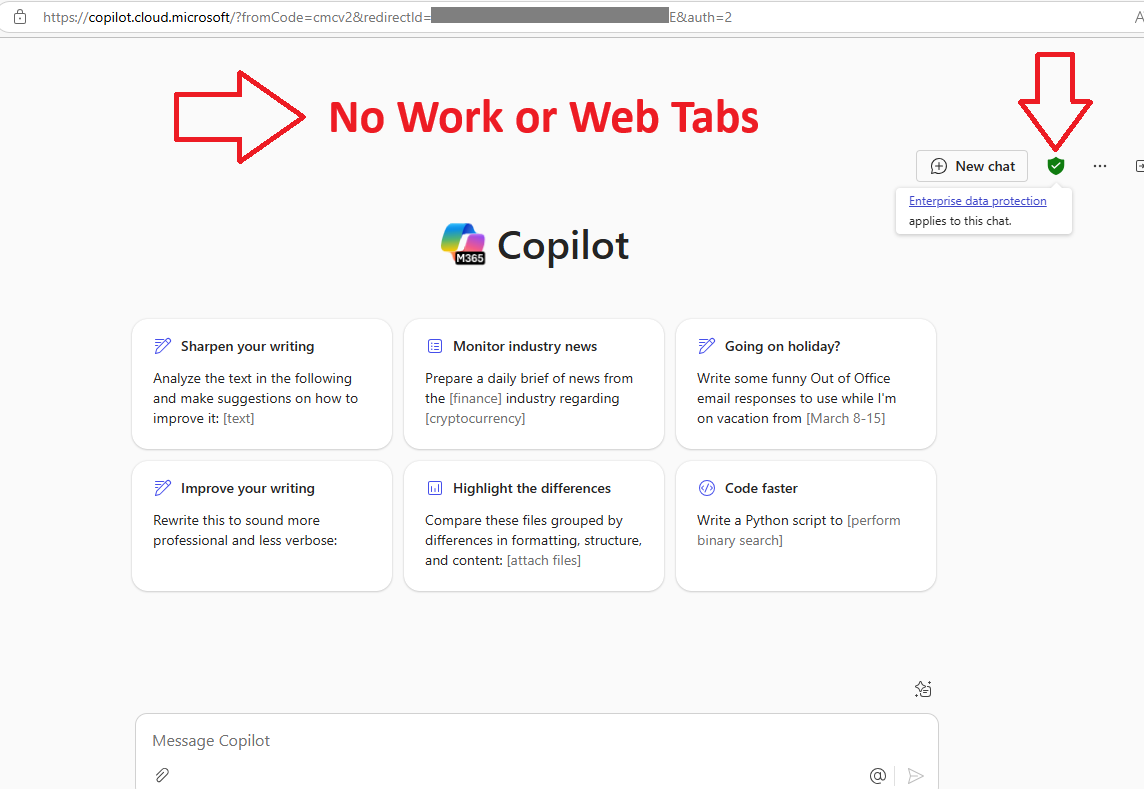
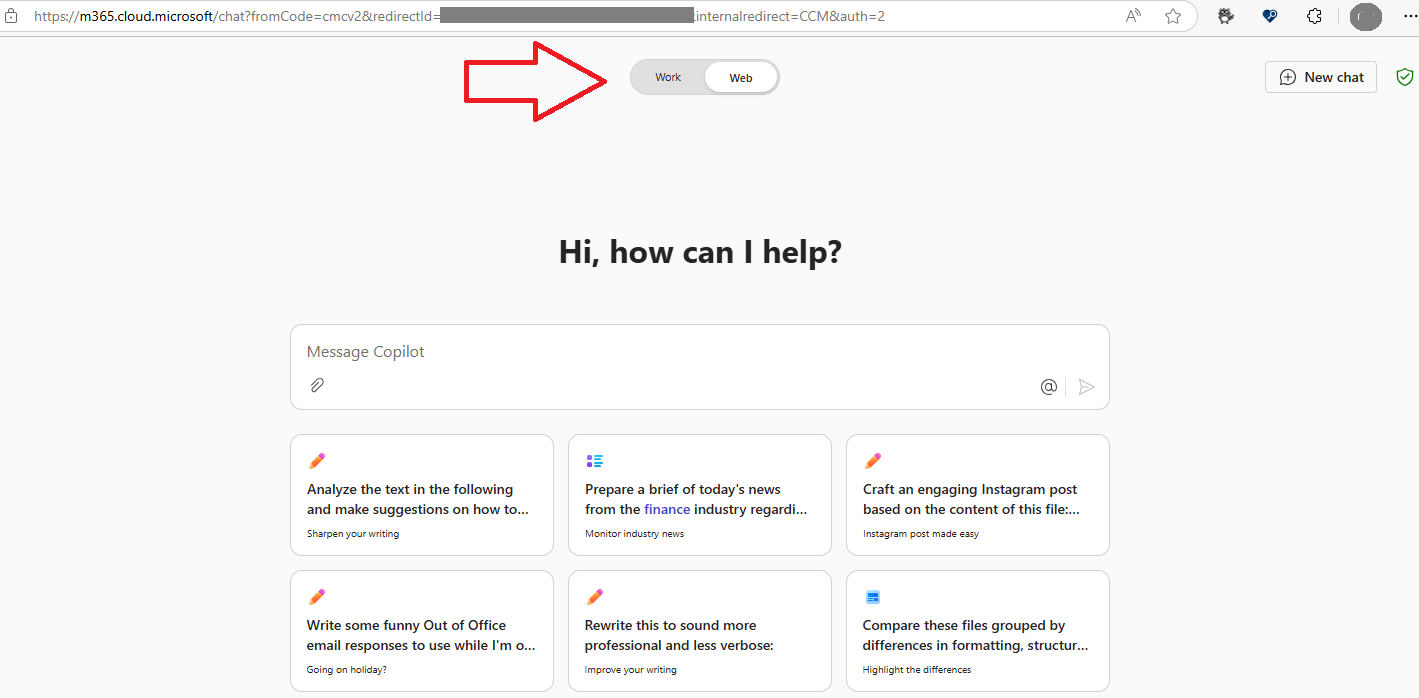
If you sign in with a user who has been assigned a Microsoft 365 license, but does not have a Copilot license, you’ll be redirected to a web interface similar to the one below.
Notice the green shield icon in the image above? Your organisational data is protected. You can upload company files and interact with Copilot, knowing that enterprise-grade security and compliance controls are in place.
Work and Web tabs are missing In the image below, you’ll also notice that the “Work” and “Web” tabs are missing. These are only available in the licensed Copilot experience.
The Web tab allows Copilot to access public internet data via Bing, enabling real-time, web-grounded responses.
The Work tab enables Copilot to access organisational data through Microsoft Graph, such as files, emails, and meetings, based on the user’s existing permissions.
Even without these tabs, both Microsoft 365 Copilot Chat and Microsoft 365 Copilot support file uploads. Users can manually upload documents and ask Copilot to summarise, analyse, or even generate content based on the file.
Another screenshot of the Microsoft 365 Copilot Chat interface below:
The premium version, which costs $30 per user per month, grants you access to both Copilot Chat and a suite of additional premium features, as shown in the image below and as I detailed in the comparison table earlier.
If you sign in with an account that has a Copilot license assigned, the paid version at $30 per user, per month, you’ll see a slightly different interface. Notably, the “Work” and “Web” tabs are visible, offering access to organisational data and public web content respectively.
Furthermore, Microsoft 365 Copilot (licensed at $30 per user, per month) allows employees to interact with their work data directly through Copilot. For example, you could ask Copilot to:
Find an email from a colleague in your mailbox
Check when you last had a meeting with a colleague
Summarise outstanding tasks assigned by your manager
Check your Microsoft Teams messages and highlight any unresolved actions
and more
These capabilities are possible because the premium version is work-grounded, meaning it can access organisational data via Microsoft Graph.
Note: Microsoft Graph is the API that connects data across Microsoft 365 services, like Outlook, Teams, SharePoint, and OneDrive, allowing Copilot to securely access and reason over your work content based on your existing permissions. Copilot can only access the data which you already have permissions to access.
The work and web tabs are available for licensed users as shown in the image below.
Access Copilot Chat from Teams and Outlook
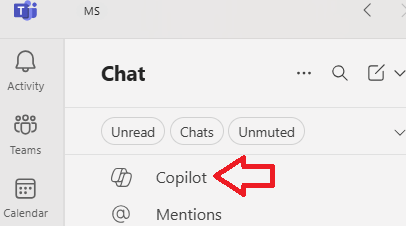
Copilot Chat is also accessible from the Microsoft Teams and Outlooks apps. Launch Microsoft Teams desktop or the web app and click the Copilot icon which appears in the left pane.
To access Copilot Chat via Microsoft Outlook, launch Outlook desktop or via the web and click the Copilot icon which appears in the left pane.
Microsoft 365 Copilot is integrated into 365 Apps
Both versions of Copilot allow you to upload documents into the chat experience. However, the licensed version, known as Microsoft 365 Copilot, is fully integrated into Microsoft 365 apps such as Word, Excel, PowerPoint, Outlook, Teams, and more.
A Copilot icon appears within these apps, enabling you to work with Copilot directly inside the Microsoft 365 environment. For example:
In Outlook, you can ask Copilot to draft a new email or reply to an existing one.
In Excel, you can ask Copilot to analyse data, add columns or rows, apply conditional formatting, insert filters, and perform deep analysis.
In PowerPoint, you can ask Copilot to create a new slide deck—referencing a Word document, such as a company income statement.
In Teams, you can ask Copilot to summarise a long conversation or analyse a recorded meeting you missed.
and more
This integrated experience is exclusive to users with a Microsoft 365 Copilot license, priced at $30 per user, per month. If you don’t have a Copilot license, these in-app Copilot icons will not be visible.
Copilot in Excel Users assigned a Copilot license will find the Copilot icon integrated in their 365 applications. Example of Microsoft Excel below.
Which AI Solution is right for you?
If your organisation already uses one of the eligible Microsoft 365 licences listed earlier, but hasn’t purchased any Copilot licenses, Microsoft 365 Copilot Chat is already included at no additional cost. This means your employees can start using it right away.
Because Copilot Chat includes built-in enterprise-grade data protection, it helps reduce the risk of employees turning to third-party AI tools that may not offer the same level of security. You don’t want staff copying and pasting sensitive company data into external AI platforms without knowing how that data is handled.
With Microsoft 365 Copilot Chat and Microsoft 365 Copilot, your data is protected under Microsoft’s Enterprise Data Protection (EDP) commitments. Your prompts, responses, and uploaded files are not used to train the underlying large language models (LLMs).
For comparison, here’s OpenAI’s article on how your data may be used when using their services such as ChatGPT.
Another benefit of Microsoft 365 Copilot Chat, especially for organisations that haven’t purchased Copilot licenses, is the ability to work with AI agents. If the agent is web-grounded, it can be used at no additional cost. For more advanced scenarios, such as agents grounded in enterprise data, you can choose between a pay-as-you-go model or a fixed monthly message pack which can be controlled by IT. This allows businesses to trial agents and evaluate whether they can support employee productivity and long-term growth, without committing to the full premium Copilot experience immediately. You may wish to upgrade to the premium version at a later date.
What’s Microsoft Copilot without the 365 branding? (Copilot free for personal use) I briefly mentioned Microsoft Copilot in a comparison table above. You may have noticed references to Microsoft Copilot, without the “365” branding, and wondered how it differs from Microsoft 365 Copilot and Microsoft 365 Copilot chat.
Microsoft Copilot is the free, personal version of Copilot available to anyone with a personal Microsoft account (e.g. @hotmail.com, @outlook.com, @live.com). You can access it by visiting https://copilot.microsoft.com, clicking Sign in, and logging in with your personal email address. You can also use the personal version without logging in, but won’t be able to use the image generation and voice features without logging in first. Yes, Copilot talks to you. Give it a try.
Microsoft Copilot is a consumer version and is available for free. It can help you with personal tasks and uses information from the internet. You can use it for non sensitive work tasks, but be cautious. Never add sensitive or proprietary work information in a prompt. If you aren’t signed in with your work account, Enterprise Data Protection doesn’t apply. Check out my blog post on the free version of Copilot: Part 4 – Free Version of Microsoft Copilot – Cloud Build.
Note: If you have purchased Microsoft 365 apps for personal or family use, there’s also the option to purchase Copilot Pro, which integrates Copilot into your 365 applications at home. While the focus of this post is on Microsoft 365 Copilot Chat and Microsoft 365 Copilot for business use, it’s worth knowing that personal Copilot options are available too. A comparison of the free and pro versions is available at the following link, Compare Copilot Free and Pro.
Summary
Microsoft 365 Copilot Chat and Microsoft 365 Copilot are the two main ways your organisation can access Copilot capabilities.
Microsoft 365 Copilot Chat
Included at no additional cost for users with eligible Microsoft 365 licenses. It’s not free for all.
Web-grounded by default: it uses the latest AI models and public web data to answer questions, generate content, and provide insights.
Does not access your work data, unless you upload files manually.
Enterprise-grade data protection: your data is not used to train AI models.
Agents grounded in the web can be created/used for free
If you wish to create an agent to interact with a third party app, SharePoint and so on, this is chargeable.
Ideal for organisations looking to explore AI securely without purchasing Copilot licenses straight away.
Microsoft 365 Copilot
Includes everything in Copilot Chat, plus more.
Grounded in both web and work data, can access your emails, meetings, documents, chats, and more via Microsoft Graph.
Integrated into Microsoft 365 apps like Word, Excel, PowerPoint, Outlook, and Teams.
Agents included apart from autonomous agents
Requires a paid license ($30 per user/month), assigned by your Microsoft 365 admin.
SharePoint Advanced Management (SAM) included
Copilot is constantly evolving! Because Copilot is continuously being updated, some details in this post may become outdated over time. To stay current with the latest developments, here are a couple of helpful resources:
If you’re interested in learning more about Copilot Pages, I’ve published a blog post titled Microsoft 365 Copilot Pages – Step-by-Step Demo. You can check it out at the following link: Microsoft 365 Copilot Pages – Step by Step Demo.
I hope you found this post useful. All feedback is welcome, so please feel free to leave a comment below. Thank you
Microsoft have announced an all new free plan for GitHub Copilot, available for everyone today in VS Code. All you need is a GitHub account.
No trial
No subscription
No credit card required
GitHub Copilot is an AI coding assistant that helps you write code faster and with less effort, allowing you to focus more energy on problem solving and collaboration. GitHub Copilot has been proven to increase developer productivity and accelerate the pace of software development.
With GitHub Copilot FREE you get 2000 code completions/month. That’s about 80 per working day, which is a lot. You also get 50 chat requests/month, as well as access to both GPT-4o and Claude 3.5 Sonnet models.
If you hit these limits, ideally it’s because Copilot is doing its job well, which is to help you do yours! If you find you need more Copilot, the paid Pro plan for $10 per month is unlimited and provides access to additional models like o1 and Gemini (coming in the new year 2025). There are also other plans on offer, such as Business and Enterprise.
Thank you for continuing to stay with me on this journey learning Microsoft 365 Copilot. However, I want to go off track a little before I move back into Copilot in Microsoft 365 applications in the next post. Did you know there is a free version of Copilot available?
It’s important to note that the free version is different from the one integrated into Microsoft 365 applications, which offers additional paid features tailored for productivity tools for organisations. I’ll cover Copilot integrated into Microsoft 365 Apps such as Word, Excel, PowerPoint, Outlook, Teams and so on, later in the blog series.
There is a free version of Microsoft Copilot available through the Copilot website at copilot.microsoft.com, and the mobile app, which you can download from the Apple App Store for iOS devices and Google Play for Android devices. You can also access Copilot from bing.com and clicking on Copilot as shown in the image below.
This free version can help you with tasks like searching the web, creating content, generating images, and answering complex questions. It’s not like your usual search engine; Copilot is a generative AI engine that can search the web and generate unique content while having a conversation with you along the way. You can also speak to Copilot, and it will respond to you like a human.
Limitations The free version of Copilot has certain limitations, including restricted usage of voice and image scanning features due to daily usage limits being applied. For more extensive capabilities, consider upgrading to the Copilot Pro version. Copilot Pro is designed for individual users, offering advanced AI features and priority access to the latest models, enhancing productivity in Microsoft 365 apps like Word and Excel.
Update Copilot and Designer in Microsoft 365 Personal and Family Microsoft 365 Personal and Family subscribers will receive a monthly allotment of AI credits to use Copilot in Word, Excel, PowerPoint, Outlook, OneNote, and Designer. The credits will also apply to apps like Paint, Photos, and Notepad on Windows. Those who frequently use Copilot can upgrade to Copilot Pro, without worrying about usage limits, Learn more about AI credits. Source: Copilot and Designer in Microsoft 365 Personal and Family
On the other hand, Microsoft 365 Copilot is designed for businesses. Like Copilot Pro, it also works well with Microsoft 365 apps like Teams, Outlook, and SharePoint. However, it helps teams work together easily, communicate better, and keep data secure, making it perfect for boosting productivity and efficiency in the workplace. Microsoft 365 Copilot uses Microsoft Graph under the hood to connect and use your organisation’s data instead of focusing on one user only. It is Microsoft 365 Copilot I will be focusing on in the next posts.
Let’s explore the free version. Access copilot.microsoft.com. For a better experience, it’s worth logging in with your personal email address as additional features become available, such as the voice features and more.
Note: While the interaction with Copilot feels like a real conversation, it’s important to remember that Copilot is an AI (Artificial Intelligence) designed to simulate human like dialogue. It can understand and respond to your queries, provide information, and assist with tasks, but it doesn’t have feelings or consciousness.
Use Copilot to analyse images
Click the + icon as shown in the image below. Upload a picture, and Copilot will describe what’s in the picture. You can also perform these actions in the mobile version of Microsoft Copilot.
Communicate with Copilot via chat
2. Communicate with Copilot via chat. Type a message and explore. Maybe start with a prompt such as “Hello Copilot, what are you able to do for me?” as shown in the image below.
Look at the response from Copilot below, it seems like you are talking to a human, but you are not. 🙂
The better question is what can’t I do! Well, mostly. Need advice, facts, or a touch of entertainment? I’m your buddy. Want to dive into the latest tech trends or get creative with some writing? I’ve got you covered. Curious about cooking recipes or fun facts? Just say the word. What’s the vibe today?
Prompt: Please write me a speech to prepare for an event where I will be presenting a topic about the benefits of drinking water to children so make it sound casual and youthful.
Response from Copilot below.
We can ask Copilot to amend the text by inputting another prompt, for example, make the text longer and add a joke. Or you may wish to copy the text and amend parts yourself. That’s fine. You can use Copilot’s version of the response as a draft and work on it as you wish.
Ask Copilot to create you an image
3. Copilot is capable of generating unique images. Let’s give it a try.
Create me an image of a happy cat riding a bike whilst on the moon.
Communicate with Copilot via voice
4. Maybe you don’t fancy having a text chat with Copilot but a conversation over voice. Click the Microphone icon as shown in the image below, and you can have a voice conversation with Copilot.
Have a go and let me know what you think in the comments box below! I’m excited to hear your thoughts on this free version of Copilot.
In this blog post, we’ll delve into the art of prompting and how to achieve the best possible responses from Copilot.
What is a prompt?
A prompt is essentially a question or set of instructions you give to Copilot, such as asking it to create, summarise, edit, or transform content. Think of prompting as having a conversation, using plain and clear language and providing context as you would with a human. Simply put, a prompt is how you ask Copilot to do something for you. Being clear and concise when entering your prompt is crucial, as it helps unlock Copilot’s full potential. If you don’t get the desired result with the first prompt, you can keep the conversation going, just like you would when communicating with a human. Following up on your prompts helps you collaborate with Copilot to gain more useful, tailored responses. However, aiming to include what you need in the first prompt will help Copilot provide you with the required response. We will explore a few examples in this post.
Here’s a brief two minute video that explains what a prompt is. I recommend watching it before proceeding.
It’s important to remember that when you enter a prompt, the more specific and detailed your instructions are, the better Copilot can customise its response to meet your desired outcome.
Let’s use a couple of examples to illustrate this. Imagine you walk into a restaurant and simply ask the waiter for food. The waiter would likely ask for more details, such as what type of food you want and whether you prefer to dine in or take away. Similarly, if you ask a builder to construct a house, they would need more information, like the type of house and the number of rooms you want. When working with AI, we need to adopt a similar approach. The quality of Copilot’s response depends on the details you provide. If your instructions are vague, the response will be limited, and you’ll need to provide additional prompts to get the information you need. It’s ok to continue having a conversation with Copilot but it’s possible to limit that conversation with less prompts.
Creating effective prompts when working with Copilot will improve over time. However, at a minimum, aim to have a clear goal in mind when crafting your prompt. If Copilot’s initial response isn’t exactly what you need, you can always refine it by providing additional information through follow-up prompts. For instance, you might get the right information but find the response too lengthy. In that case, you can ask Copilot to shorten it. Think of it as an ongoing conversation with a human. The key is to be clear and concise from the start, and then build on that if necessary.
To receive the best response from Copilot the first time, think about including the following four parts in to your prompt if possible or at a minimum, a goal and context.
Goal What is it that you want Copilot to do for you, summarise an email, generate a document, creating a bullet point list and so on. Provide it with specific instructions of what you require from Copilot)
Context Why do you require the information? what is it you’re going to do with the information? for example, is the information needed for an upcoming presentation for school children.
Expectations What type of tone do you wish for Copilot to respond. Should the response be in a simple and friendly manner so school children can understand it. Should the response be a couple of paragraphs or a page of text.
Source Do you need Copilot to refer to a particular document, from a website or from an email conversation between you and a colleague where the email includes a list of topics which need to be discussed in the presentation.
It’s not always important to include all four parts into a prompt, a couple if parts may be sufficient, but including the four parts into your prompt provides a more specific set of instructions to Copilot and a good response.
Let’s go through a few examples,
Example 1 – Copilot Prompt
I input the prompt below at copilot.microsoft.com
“Write about water”
Copilot provides a response about water, but I could rephrase the prompt so it is more specific.
Let me try again, but this time I’ll provide a clear goal and make it specific.
Goal: Please write a speech to prepare me Context: for an event where I will be presenting a topic about the benefits of drinking water to children Expectations: so make it sound casual and youthful. Source: Refer to data from the following link Water, drinks and hydration – NHS (www.nhs.uk)
Here is the prompt:
Please write a speech to prepare mefor an event where I will be presenting a topic about the benefits of drinking water to childrenso make it sound casual and youthful. Refer to data from the following link Water, drinks and hydration – NHS (www.nhs.uk)
It’s not always important to all four parts into a prompt, if needed we can always input further prompts. For example, I could input a prompt without the source and let Copilot provide a response based on it’s own sources. Such as,
Please write a speech to prepare mefor an event where I will be presenting a topic about the benefits of drinking water to childrenso make it sound casual and youthful. Refer to data from the following link Water, drinks and hydration – NHS (www.nhs.uk)
and here is the response from Copilot. Copilot has provided a response with a tone that can relate to children, such as the sentence below.
Hey everyone! I’m super excited to talk to you today about something really important – water! Yep, that simple drink we all know and love. But did you know that water is like a superhero for our bodies? Let me tell you why.
Additional wording has been used such as awesome and playground to catch the attention of the children.
It has also included in the prompt recommended amount of water as per NHS UK guidelines as per my request.
Furthermore, I can continue with the conversation and ask Copilot to adjust the response if needed.
If I am not happy with the response or Copilot provided me with incorrect information, I can use the thumbs up or thumbs down icon to feedback to Microsoft. It’s important to verify the information Copilot provides, as it may sometimes provide a convincing, yet incorrect response. Use the feedback options to report such responses to Microsoft.
Let’s try that prompt again, this time removing the NHS website as a source.
Please write a speech to prepare mefor an event where I will be presenting a topic about the benefits of drinking water to childrenso make it sound casual and youthful. Refer to data from the following link Water, drinks and hydration – NHS (www.nhs.uk)
Before I enter the above prompt without the last part. I click the option for a new chat so Copilot no longer uses the information I have already provided it in my recent conversation.
Prompt and response below.
This time Copilot has used generated me a different response without any reference to the NHS website. I could also reference an internal document if needed, but the point here is that depending on what you ask for is what you’ll receive from Copilot.
Example 2 – Copilot Prompt
Another prompt that I could input into Copilot could be,
Please write me a technical blog post article
Copilot responds requesting for more detail about what technical topic I would like Copilot to write a blog post about. Yes, we can provide that additional information, but if you focus on including that in the initial prompt, you may get what you need from the first prompt.
This prompt may work better. I have not used a source in this prompt, but I could ask Copilot to use a document or a website when putting together its response.
Please write me a blog articleabout the benefits of Microsoft 365 Copilot.The blog post must be 1,000 characters and simple to understand for someone who is new to the Copilot for 365.
Goal: Please write me a blog article Context: about the benefits of Microsoft 365 Copilot Expectations: The blog post must be 1,000 characters and simple to understand for someone who is new to the Copilot for 365. Source:
Here is the response from Copilot. Much better, however I can always insert another prompt and ask Copilot to shorten or make the blog post longer.
Finally, lets ask Copilot to explain what a good prompt should include.
Create a bullet point listof what I should take into consideration with prompting with Copilot.
Goal: Please write me a blog article Context: for an event where I will be presenting a topic about the benefits of drinking water to children Expectations: Source:
I could add additional prompts if the response required additional information, however, I feel the below response is what I need to summarise what to consider when prompting with Copilot.
Example 3 – Copilot Prompt
Give me 5 bullet pointsfor me to use in a talk from the Copilot email discussion I had with my colleague Darren last week.The response should be easy to understand and keep it short.
Goal: Give me 5 bullet points Context: for me to use in a talk to my colleagues Source: from the Copilot email discussion I had with my colleague Darren last week Expectations: The response should be easy to understand and keep it short
Example 4 – Copilot Prompt
I want a list of five games to playfor a team get together at Las Vegas.Provide a list of ideas that are fun and family friendly and include any supplies that may be needed.Please take ideas from the Internet.
Goal: I want a list of five games to play Context: for a team get together at Las Vegas Expectations: Provide a list of ideas that are fun and family friendly and include any supplies that may be needed. Source: Please take ideas from the Internet.
Example 5 – Copilot Prompt
Create me 5-8 bullet pointsto prepare me for a meeting with Client Contoso Ltd to discuss their new “Phase 10” brand campaign.Focus on email and teams messages since August.Please use simple language so I can get up to speed quickly for the meeting tomorrow.
Goal: Create me 5-8 bullet points Context: to prepare me for a meeting with Client Contoso Ltd to discuss their new “Phase 10” brand campaign. Source: Focus on email and teams messages since August. Expectations: Please use simple language so I can get up to speed quickly for the meeting tomorrow.
And remember, keep the conversation going.Following up on your prompts help you collaborate with Copilot to gain more useful, tailored responses.
Looking for additional prompts?
Check out Copilot Lab, a free resource which provides hundreds of example prompts you could use.
I hope you found this post useful
In the next post, I explore the free version of Copilot. If you’ve not already done so, please subscribe to stay informed of new posts.
Subscribe
Subscribe to new tech posts.
We will never send you spam email or forward your details to third parties.